Intel I219-V Ethernet Speed: Specs & Performance Guide
If you are building a modern PC or troubleshooting your current motherboard's networking capabilities, you have likely encountered the Intel I219-V Gigabit Network Connection. As one of the most widely integrated LAN chips on consumer motherboards over the last decade, understanding its actual 1219-v ethernet speed and limitations is essential for getting the most out of your home network.

Whether you are trying to fix a capped 100 Mbps connection or wondering if your chip can handle multi-gigabit fiber internet, this guide breaks down the technical specifications, real-world performance metrics, and common troubleshooting steps for the Intel I219-V controller.
Understanding Intel I219-V Ethernet Speed Specifications
The Intel I219-V is a PHY (physical layer) controller that pairs with the Intel Management Engine built into your motherboard's chipset. Designed primarily for consumer desktop systems, it is engineered for reliability, low power consumption, and efficient CPU offloading.
Here are the core specifications regarding its speed and throughput:
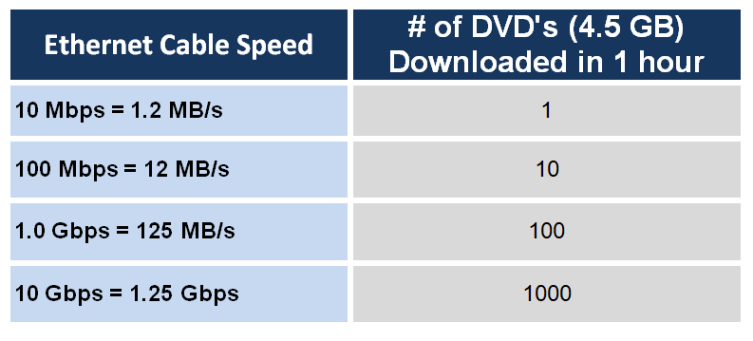
- Maximum Rated Speed: 1 Gbps (Gigabit Ethernet / 1000 Mbps)
- Backward Compatibility: 100 Mbps (Fast Ethernet) and 10 Mbps
- Duplex Modes: Full-duplex and Half-duplex across all supported speeds
- Bus Interface: PCIe via the PCH (Platform Controller Hub)
It is important to note that the Intel I219-V is not a 2.5 Gbps or 10 Gbps controller. If you pay for ultra-fast multi-gigabit fiber internet (such as 2 Gbps or 5 Gbps plans), this specific LAN port will bottleneck your connection at the standard 1 Gbps ceiling. However, for the vast majority of online gaming, 4K streaming, and local file transfers, a stable gigabit connection remains more than sufficient.
Real-World Performance and Features
Beyond raw speed numbers, the Intel I219-V is popular among PC builders because of its enterprise-grade heritage scaled for consumer boards. It includes several hardware-level features designed to optimize network traffic and reduce latency.
Hardware Acceleration and CPU Offloading
The I219-V supports TCP/UDP checksum offloading and Large Send Offload (LSO). By handling these networking calculations directly on the controller chip rather than forcing your main CPU to process them, you experience slightly lower system overhead during heavy data transfers or intense multiplayer gaming sessions.
Jumbo Frames Support
For users running Network Attached Storage (NAS) devices or heavy local file servers, the I219-V supports Jumbo Frames up to 4096 or 9014 bytes (depending on the specific driver version and registry configuration). Enabling jumbo frames can significantly boost throughput when moving massive files across a local area network by reducing packet overhead.
Troubleshooting Common I219-V Speed Bottlenecks

Many users discover the I219-V controller because they are troubleshooting a frustrating issue: their gigabit connection is stuck at 100 Mbps, or they are experiencing intermittent packet loss. Because this is a software- and driver-sensitive chip, several common culprits usually explain these speed drops.
1. The 100 Mbps Trap (Faulty Cabling)
Gigabit Ethernet requires all eight internal copper wires within an Ethernet cable to make proper contact. If your PC suddenly drops to 100 Mbps:
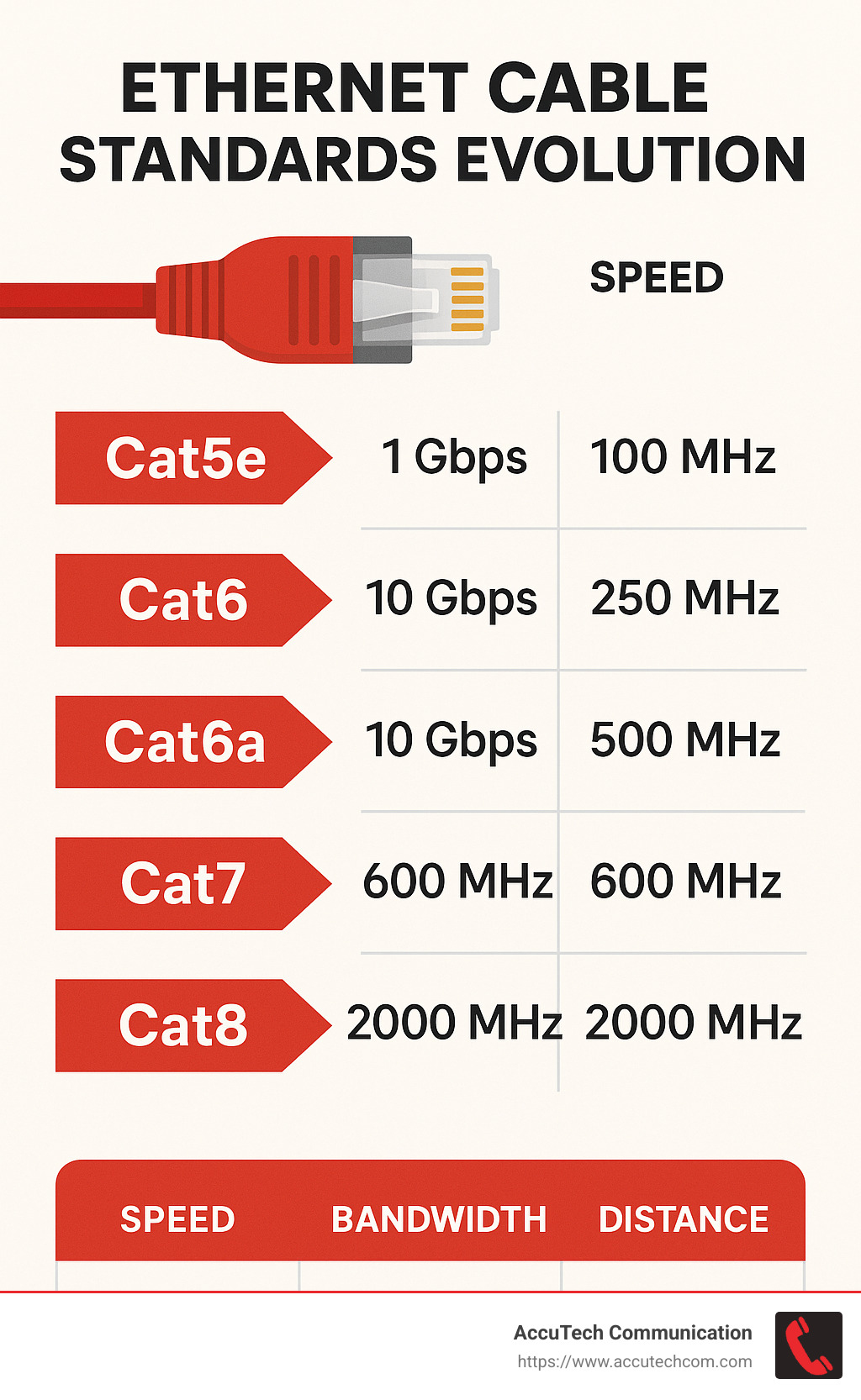
- Inspect your Cat5e or Cat6 cable for kinks, sharp bends, or damaged latch clips.
- Check the RJ45 port for dust or bent pins.
- Try swapping out the cable with a certified Cat6 or Cat6a cable to rule out physical damage.
2. Outdated or Generic Windows Drivers
Windows Update frequently installs basic Microsoft drivers for Intel network chips. While these drivers provide basic connectivity, they often lack advanced power management controls and optimization features. To fix this:
- Visit your motherboard manufacturer's support page or the Intel download center to get the latest PROSet / Intel Network Adapter driver.
- Install the official driver package.
- Open Device Manager, locate your Intel Ethernet Connection (I219-V), right-click, and select Properties.
3. Advanced Driver Settings Optimization
Once you have the official Intel drivers installed, you can tweak specific adapter properties to maximize your connection stability and reduce latency:
- Speed & Duplex: Ensure this is set to Auto Negotiation (or explicitly set to 1.0 Gbps Full Duplex if your switch/router supports it).
- Energy Efficient Ethernet (EEE) & Green Ethernet: Disable these features. While they save fractional amounts of power, they frequently cause the adapter to sleep or drop down to lower speeds unexpectedly during brief periods of inactivity.
- Receive Side Scaling (RSS): Enable this feature to distribute network processing across multiple CPU cores, which helps maintain high throughput during heavy downloads.
- Interrupt Moderation: Disable this if you want absolute lowest latency for competitive gaming, though leaving it enabled is generally fine for normal desktop use.
Intel I219-V vs. Newer Multi-Gigabit Controllers
As internet service providers roll out speeds exceeding 1 Gbps, motherboard manufacturers have largely shifted toward Realtek 2.5G (RTL8125) and Intel I225-V / I226-V controllers.
While the newer I225/I226 chips support 2.5 Gbps speeds, early revisions of the Intel I225-V suffered from notorious disconnection bugs and handshake issues. In contrast, the mature Intel I219-V is celebrated for its rock-solid stability. If you do not have multi-gigabit internet, the lower speed ceiling of the I219-V is a small trade-off for bulletproof reliability.
Conclusion
The Intel I219-V remains a dependable, high-performing gigabit networking solution for desktop computers. While its maximum 1219-v ethernet speed is capped at 1 Gbps, it delivers exceptional stability, low CPU overhead, and robust feature support. By keeping your drivers updated and disabling aggressive power-saving modes, you can ensure your I219-V runs at peak performance for years to come.