Is AT&T Broadband Down? How to Check and Fix It
Few technical glitches disrupt modern life faster than losing your home internet connection. If your streaming stops buffering, work calls drop, and web pages refuse to load, your first instinct is likely to wonder if AT&T broadband is down across your neighborhood or if the issue sits entirely inside your living room. Before you spend forty-five minutes waiting on hold for customer support, you can follow a few direct steps to verify an outage, diagnose your hardware, and potentially restore your connection yourself.

How to Confirm an AT&T Network Outage
Before unplugging cables or restarting your router, determine whether the problem is on AT&T’s side. If a fiber line is cut down the street or a central switching office loses power, no amount of home troubleshooting will bring your connection back.
1. Use the AT&T Smart Home Manager App
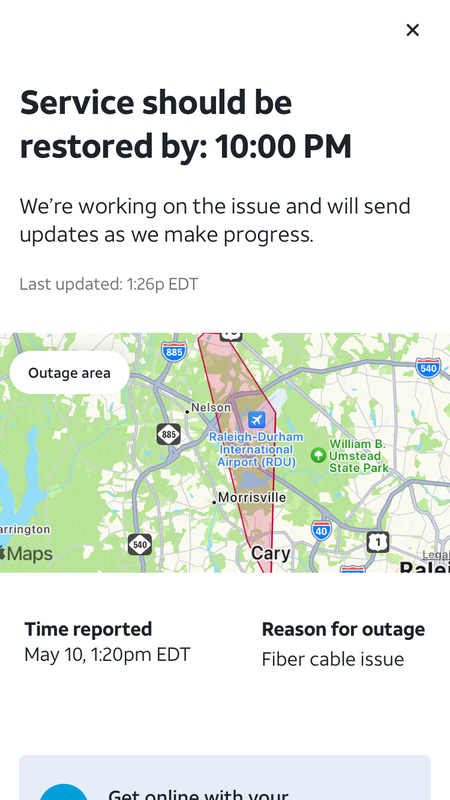
The fastest official tool is the free AT&T Smart Home Manager app (available on iOS and Android). If your mobile device has cellular data, open the app and log into your AT&T account. The app communicates directly with your home gateway from the cloud. If an outage affects your account, the app will display a banner notifying you of service interruptions, estimated repair times, and network status updates.
2. Check the AT&T Outage Portal
You can also visit AT&T’s web-based outage center using your smartphone’s mobile browser:
- Navigate to
att.com/outages. - Sign in with your AT&T User ID or enter your billing address and ZIP code.
- Review the live status map. The system will tell you if known disruptions affect broadband, phone, or digital TV services in your sector.
- You can also opt in for SMS notifications to get a text alert the moment service is officially restored.
3. Monitor Crowdsourced Outage Trackers
Official status pages occasionally lag behind real-world failures by 15 to 30 minutes while automated alert systems process trouble tickets. Independent websites like Downdetector aggregate user reports in real time. If you see a steep spike in reports for AT&T within the past 15 minutes—accompanied by comments from users in your metro area—an infrastructure failure is almost certainly the culprit.
Troubleshooting Steps When AT&T Broadband Is Down
If AT&T’s outage tools indicate that your local network is fully operational, the issue likely stems from your Wi-Fi gateway, a loose physical line, or an internal device error. Work through these sequential troubleshooting steps to get back online.
Decode Your AT&T Gateway Status Lights
Your AT&T gateway (commonly a BGW210, BGW320, or NVG599 model) communicates its operating status via LED indicator lights on the front panel. Understanding these lights saves considerable time:
- Solid White or Solid Green (Normal): Your gateway is powered on, authenticated, and holding a healthy broadband signal. If your devices cannot load pages despite this light, your problem is likely local Wi-Fi interference or an IP configuration glitch on your computer or phone.
- Blinking Red (Broadband/Service): The gateway cannot detect a network signal from the wall outlet or fiber jack. This indicates a physical disconnect, an unprovisioned line, or an external line break outside your home.
- Solid Red (Power or Service Failure): A hardware fault has occurred within the unit, or the device has failed its self-test. A full reboot is required.
- Blinking Green or Fast Amber: The unit is actively attempting to sync with the network, establish an IP handshake, or download an automated firmware update. Give it at least 10 minutes to complete the cycle without interrupting power.
Perform a Controlled Power Cycle

Power cycling solves a vast majority of local router and gateway software lockups. Rather than pressing tiny reset pins—which can erase your custom Wi-Fi network names and passwords—perform a clean restart:
- Unplug the power cord directly from the back of the AT&T gateway (do not simply switch off an extension strip).
- If you have a separate white fiber box mounted on the wall (an Optical Network Terminal, or ONT), unplug its power adapter as well.
- Wait a full 60 seconds. This allows the internal capacitors to discharge completely, flushing volatile cache memory.
- If you have a separate ONT, plug it back in first and wait two minutes until its PON or Power light turns solid green.
- Plug the power cord back into your main AT&T gateway.
- Wait 5 to 8 minutes for the gateway to reboot, synchronize with the central exchange, and establish downstream/upstream channels.
Inspect Physical Cables and the Fiber Jack
Physical connections can work themselves loose over time through vibrations, vacuuming, or pets shifting equipment:
- For Fiber Connections (BGW320 or standalone ONT): Ensure the thin green-tipped fiber patch cable is firmly seated into the port. Fiber cables are delicate; check for tight bends, kinks, or crimps along the line, which can fracture the glass core inside.
- For Copper/DSL Connections: Ensure the green data cable is securely clicked into the RJ-11 port labeled “Broadband” on the gateway and into the wall jack.
- Ethernet Connections: If you use third-party mesh routers or switches downstream from your AT&T unit, inspect the yellow Ethernet interconnect cable running from the gateway’s port to your router’s WAN port.
Test a Direct Wired Connection
Sometimes your internet connection is active, but your Wi-Fi signal has crashed due to radio frequency interference or local band congestion. Connect a laptop or desktop directly into one of the yellow LAN ports on the back of the AT&T gateway using an Ethernet cable. Turn off your computer’s Wi-Fi. If you can load web pages over the wired cable, your broadband connection is functioning normally, and you need to troubleshoot your Wi-Fi settings or split your 2.4 GHz and 5 GHz bands.
Switch Your DNS Server Addresses
Occasionally, AT&T’s assigned Domain Name System (DNS) servers experience local routing problems. When this happens, your connection remains alive, but your devices cannot translate domain names (like google.com) into numerical IP addresses.
You can test this by opening a browser and typing 1.1.1.1 or 8.8.8.8 directly into the address bar. If a webpage loads via its raw IP address but domain names fail, switch your device's DNS settings to Cloudflare (1.1.1.1 and 1.0.0.1) or Google Public DNS (8.8.8.8 and 8.8.4.4) temporarily.
When to Contact AT&T Support
If your gateway displays a persistent blinking red light, physical cables are secure, and AT&T’s outage map displays no problems, the issue likely involves an external drop line or an unassigned port at the local neighborhood terminal. In this scenario, home troubleshooting cannot solve the problem.
Reach out to AT&T support through their primary technical line at 1-800-288-2020. When speaking with automated voice prompts, state "Broadband Technical Support" or use the Smart Home Manager app to schedule a technician visit directly. The app can run a remote line test, verify signal degradation at your ONT, and allow you to select the earliest available service window without phone hold times.
How to Claim Bill Credits for Extended Downtime
If an AT&T broadband outage persists for an extended period (typically more than 24 consecutive hours), you may be eligible for a prorated service credit on your monthly statement. AT&T does not always apply these credits automatically.
Once service is restored, call customer billing or start a live chat via your account portal. Note the exact date and duration of the outage, reference any service ticket numbers provided during the downtime, and request a prorated credit against your base broadband charge. While it won't undo the inconvenience, it ensures you only pay for the service you actually received.