Is Your Zoom PNP Room Setup Sabotaging Your Meetings?
Virtual meetings are the lifeblood of modern business, yet nothing derails momentum faster than a frozen screen, a hollow echo, or a camera pointed directly at the ceiling. When remote and hybrid teams gather online, they rely heavily on plug-and-play (PNP) hardware to bridge the physical gap. However, convenience often comes at a hidden cost. If you have ever wondered why your presentations stall or your audio cuts out, **is your Zoom PNP room setup sabotaging your meetings?**

While Plug-and-Play devices are designed to make technology accessible to everyone without requiring an IT degree, improper configuration can lead to persistent frustration. Let us examine how your current setup might be working against you and what you can do to reclaim meeting productivity.
The Illusion of Simplicity in Plug-and-Play Hardware
The core promise of a PNP setup is friction-free deployment. You unpack a speakerphone, plug a USB cable into your laptop or meeting room hub, and expect professional-grade audio and video instantly. Most of the time, modern operating systems and platforms like Zoom handshake successfully with these devices. But convenience often masks underlying technical conflicts.
When multiple audio drivers or conflicting video devices are connected to a single hub, Zoom has to guess which peripheral takes priority. This automated guesswork frequently results in dropped frames, distorted audio, or the dreaded feedback loop that halts conversations. Relying solely on default settings without a proper system check is a primary reason meetings start late and run inefficiently.
Top Ways Your Zoom PNP Room Setup Sabotages Productivity
Identifying the root cause of meeting friction requires looking at the specific components that make up your conference space. Here are the most common culprits behind subpar virtual collaboration.
1. Audio Routing and Feedback Loops
Audio is arguably more important than video; people can tolerate a grainy picture, but they will check out if they cannot hear you clearly. PNP speakerphones often feature built-in microphones and speakers designed for small-to-medium rooms. Problems arise when:

- Zoom defaults to your computer's built-in microphone instead of the external PNP conference bar.
- Echo cancellation fails because the speaker volume is set too high for the room size.
- Bluetooth PNP devices experience packet loss or interference from nearby electronics.
2. Bandwidth and USB Bottlenecks
Many meeting rooms rely on a single USB hub to connect high-definition cameras, multi-array microphones, and display monitors. If that hub is plugged into an older USB port (such as USB 2.0 instead of USB 3.0), you create a massive data bottleneck. The bus cannot transfer uncompressed 1080p or 4K video alongside high-fidelity audio simultaneously. The result? Stuttering video feeds and compressed, robotic voices.
3. Poor Camera Placement and Lighting
Plug-and-play webcams and conference cameras are easy to mount on top of a display, but this rarely offers the best perspective. Cameras placed too high or too low create unnatural viewing angles that disengage participants. Furthermore, ambient room lighting—such as a bright window directly behind the camera—can overwhelm the automatic exposure settings on simple PNP cameras, casting attendees into deep shadows.
How to Audit and Optimize Your Meeting Space
Fixing these issues does not require a complete overhaul of your technology budget. Often, a systematic audit of your hardware and software settings is all it takes to transform your meeting experience.
- Standardize Audio/Video Defaults: Open Zoom desktop client settings, navigate to the Audio and Video tabs, and manually select your specific PNP hardware. Do not leave these settings on 'Auto.'
- Upgrade Your Connections: Ensure all high-bandwidth devices are plugged directly into high-speed USB ports. Avoid daisy-chaining multiple cheap hubs together.
- Test Before You Broadcast: Use the Zoom Test Meeting feature to check your speaker levels, microphone pickup range, and camera framing before important client calls.
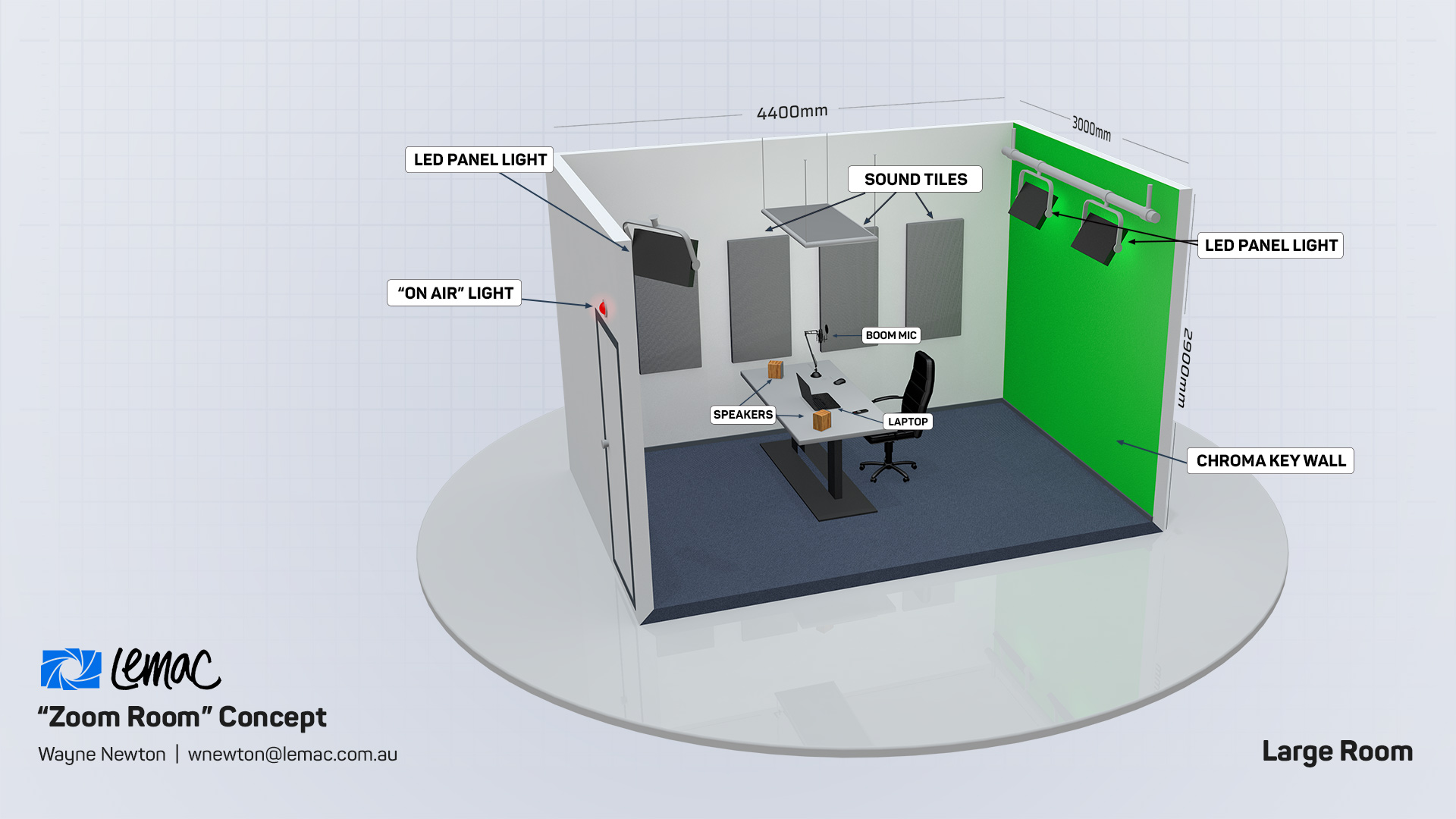
- Optimize Room Acoustics: Add soft furnishings, rugs, or acoustic panels to minimize echo, allowing your PNP microphone's noise-suppression algorithms to work effectively.
Conclusion
Technology should empower collaboration, not complicate it. By moving past the assumption that plug-and-play gear works perfectly right out of the box, you can eliminate the technical hurdles that stall your daily discussions. Take twenty minutes today to review your hardware connections and software configurations. Ensuring your Zoom PNP room setup is properly optimized will save you time, reduce meeting fatigue, and keep your team focused on what truly matters.