iSolved Employee Self Service Portal Guide
Managing workplace tasks, tax documents, and benefits shouldn't require constant trips to the human resources department. Modern workforce management platforms bridge this gap by putting administrative control directly into the hands of the staff. For companies using iSolved, this functionality is powered by the isolved employee self service portal, a centralized hub designed to streamline everyday HR and payroll interactions.
Whether you are a newly hired employee trying to access your onboarding documents or a seasoned team member updating your direct deposit, understanding how to navigate this platform saves time and reduces administrative friction. This guide explores the core features, login steps, and best practices for making the most of your portal experience.
What is the iSolved Employee Self Service Portal?
The iSolved employee self service portal (often abbreviated as ESS) is a cloud-based application that allows workers to view and manage their employment-related information without needing direct assistance from HR or payroll personnel. Accessible via web browsers and mobile-friendly interfaces, the platform acts as a secure, 24/7 digital office for your employment records.
Employers utilize iSolved to handle payroll, time tracking, benefits administration, and compliance. By granting workers access to the ESS tier of the software, companies empower their teams to take ownership of their data accuracy. This drastically cuts down on manual data-entry errors and administrative overhead.
Key Features Available in the Portal
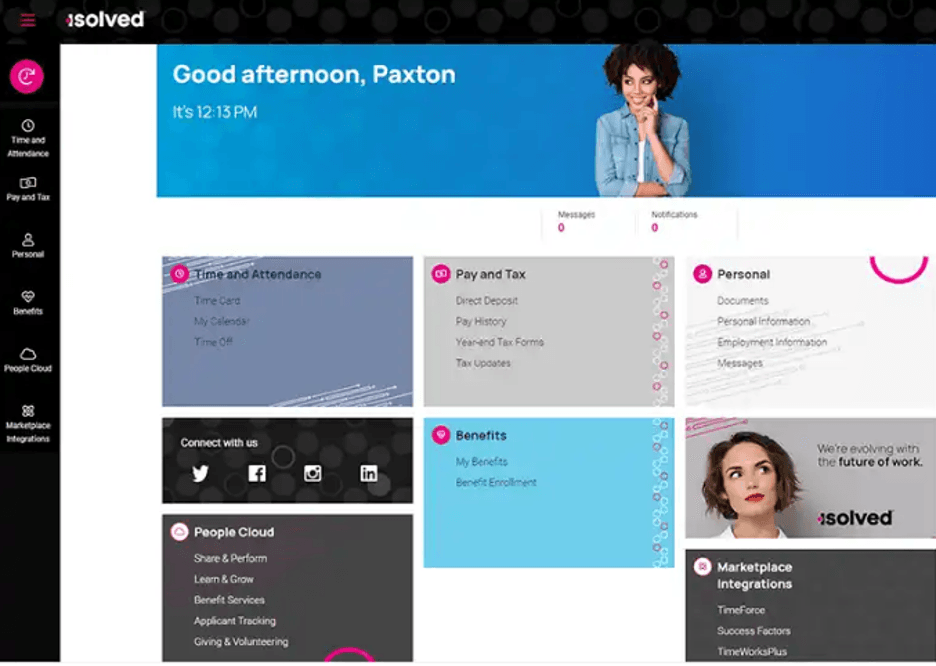
The portal goes far beyond simple pay stub viewing. Depending on how your employer has configured your specific account, you can typically access a wide array of tools and documents:
- Payroll and Tax Documents: View current and historical pay stubs, check year-to-date earnings, and download your annual W-2 or 1099 forms at tax time.
- Personal Information Management: Update your home address, phone number, emergency contacts, and marital status securely.
- Benefits Enrollment: Review your active health, dental, vision, and retirement plans, and make elections during open enrollment periods.
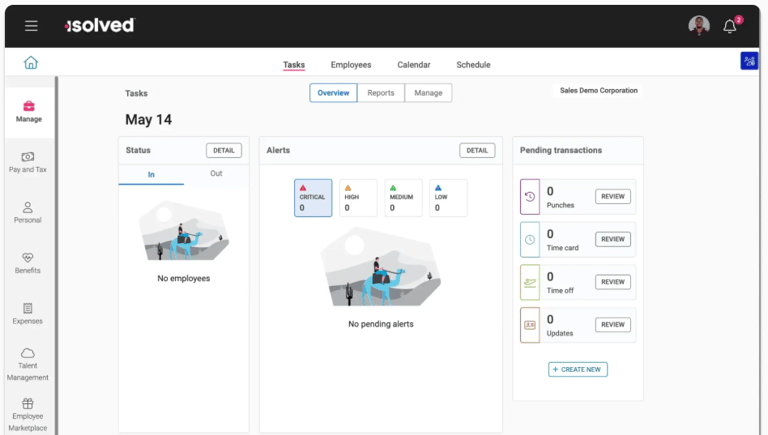
- Time and Attendance: If integrated with your company's timekeeping system, you can view your scheduled shifts, clock in and out, and check accrued paid time off (PTO) balances.
- Company Documents: Access company handbooks, safety manuals, performance reviews, and internal announcements.
How to Log In for the First Time
Getting started on the platform requires an initial setup invitation from your employer. If your company uses iSolved, follow these general steps to establish your account:
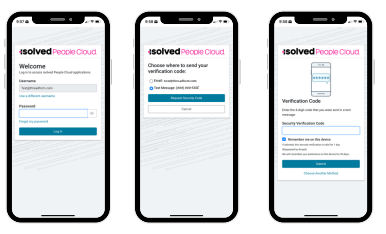
- Check Your Email: Look for a welcome or registration email sent by your employer or the iSolved system. This email usually contains a unique registration link and a temporary company code.
- Click the Registration Link: Open the link to navigate to the secure login page.
- Enter Your Details: Input the required verification details, which typically include your Social Security Number (SSN) and date of birth to verify your identity.
- Create Credentials: Choose a secure password and set up multi-factor authentication (MFA) security questions if prompted.
- Bookmark the Login Page: Save the unique login URL provided by your HR department for quick access in the future.
Troubleshooting Common Login Issues
Even with user-friendly systems, technical hiccups happen. If you find yourself locked out of your account, try these standard troubleshooting steps:
Password Resets
If you forget your password, click the "Forgot Password" link on the main login screen. You will need to enter your registered username or email address to receive a password reset link. Keep in mind that security protocols may require you to answer security questions or enter a verification code sent to your mobile phone.
Locked Accounts
Entering incorrect credentials too many times will temporarily lock your account for security purposes. If this happens, waiting 15 to 30 minutes often resolves the lockout automatically. Alternatively, you can reach out directly to your company's internal HR or payroll administrator, who has the permissions to manually unlock your profile within the admin dashboard.
Tips for Maximizing the Portal Experience
To ensure your records remain accurate and your payroll runs smoothly, keep these best practices in mind:
- Keep Information Current: Whenever you move, change your phone number, or experience a life event that impacts taxes, update your profile immediately.
- Check Pay Stubs Regularly: Review your pay stub each pay period to verify that your hours, deductions, and tax withholdings are correct. Catching an error early makes it much easier to fix.
- Download Tax Forms Early: Save digital copies of your W-2 forms securely to your personal computer or cloud drive so you are prepared when tax season arrives.
- Use Mobile Access: Ask your HR department if your company supports the mobile application version for easier access to time tracking and schedules on the go.
By taking advantage of the iSolved employee self service portal, you take control of your employment data while helping your employer maintain a streamlined, paperless workplace.


.png?width=1080&height=1080&name=Benefits Administration Dashboard(1).png)