LVNDMARK Tarkov Settings Guide: Complete Setup
When it comes to high-octane PvP and aggressive plays in Escape from Tarkov, few players reach the legendary status of the streamer LVNDMARK. Known for his lightning-fast reaction times and unmatched map knowledge, fans constantly try to replicate his success. While raw mechanical skill plays a huge role, dialing in your hardware and software configuration is essential. Optimizing your LVNDMARK tarkov setting preferences is the first step toward improving your frame rates, spotting hidden enemies, and winning more gunfights.

Understanding LVNDMARK's Setup Philosophy
Before copying specific sliders, it helps to understand why top-tier players configure their games a certain way. Escape from Tarkov is notoriously difficult to run smoothly, suffering from optimization hurdles across various maps like Streets of Tarkov and Lighthouse. LVNDMARK prioritizes high, stable frame rates over cinematic fidelity.
Furthermore, visual clarity is paramount. By turning down distracting visual effects and utilizing post-processing filters, enemies standing in dark shadows or foliage become much easier to spot. Here is a comprehensive breakdown of the exact settings used to achieve that competitive edge.
LVNDMARK Tarkov Graphics Settings
Graphics settings in Tarkov directly affect your frame rate and input latency. LVNDMARK generally runs his game on a high-end PC, but his configuration still favors performance and visibility.
Display Settings
- Screen Mode: Fullscreen (Always use fullscreen to minimize input lag and maximize GPU allocation).
- Resolution: Native monitor resolution (typically 1920x1080 or 2560x1440 depending on your monitor).
- Vsync: Off (Crucial for reducing input delay, though you may need to force it off via Nvidia Control Panel if you experience tearing).
- Overall Texture Quality: High (If you have a GPU with 8GB+ VRAM, High textures look better without hurting performance significantly).
- Shadow Quality: Low or Medium (Lower shadows reduce visual clutter and boost FPS dramatically in complex areas like Interchange or Resort).
Advanced Settings
- Object LOD Quality: 2 to 2.5 (Determines the distance at which objects render. Lowering this saves CPU power, but setting it too low makes items invisible at a distance).
- Overall Visibility: 1000 to 1500 (Keeps player models and important structures rendering properly at long ranges).
- Shadow Visibility: 40 to 80 (Keeps shadows from rendering too far out, saving massive amounts of performance).
- DLSS / FSR: Off or Quality (Turn off if you have a top-tier GPU, or use Quality if you need extra frames on demanding maps).
- HBAO: Off (Creates realistic ambient occlusion shadows that make it harder to spot players in dark corners).
- SSR (Screen Space Reflections): Off (Adds unnecessary GPU overhead and visual noise).
- Anisotropic Filtering: Per Texture or On (Minimal performance impact, makes distant textures look sharper).
- Nvidia Reflex Low Latency: On + Boost (Significantly reduces input lag between your mouse click and the action on screen).
PostFX Settings for Maximum Visibility

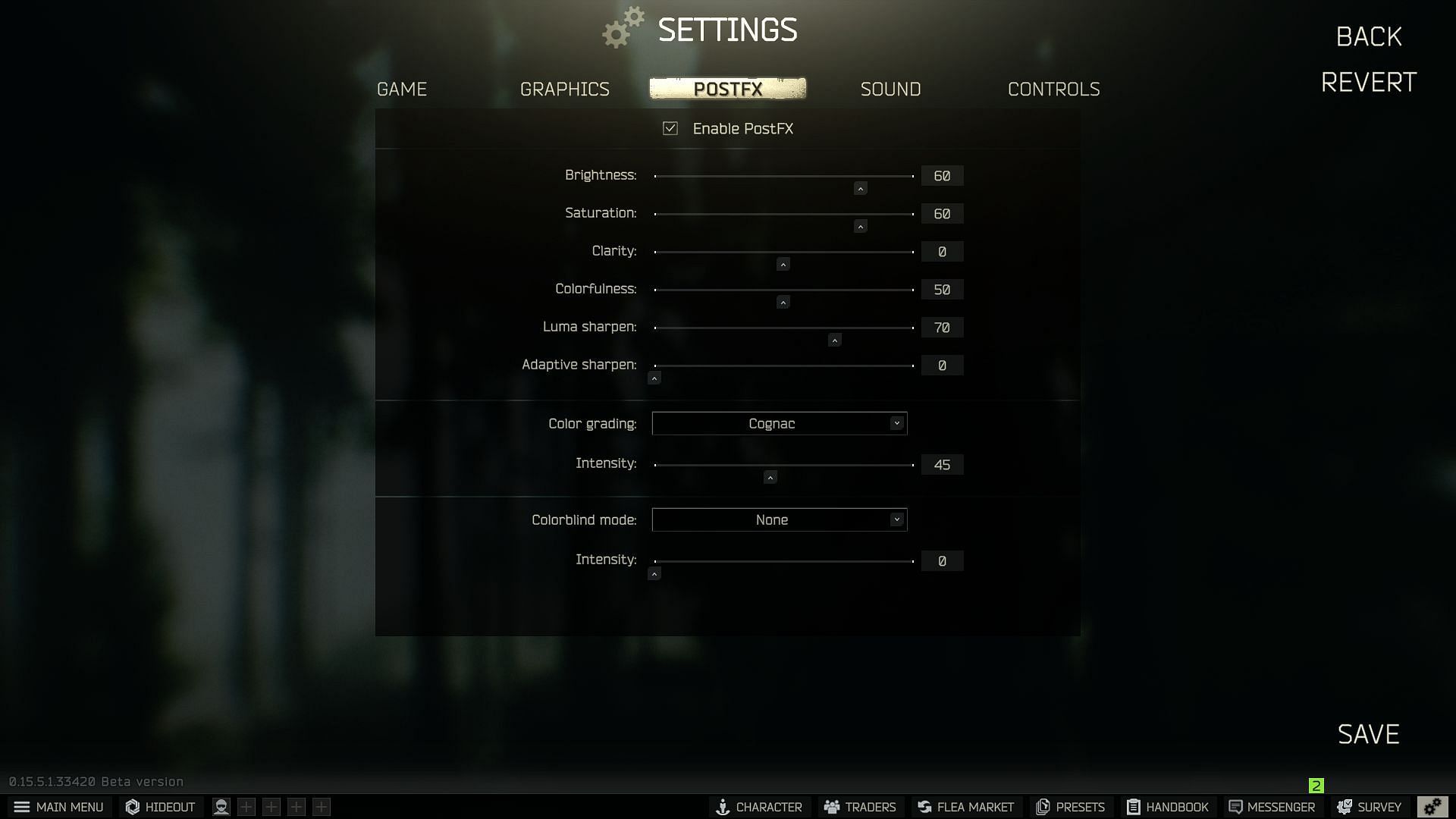
Escape from Tarkov's default color palette is notoriously gray, washed out, and dingy. To combat this and make enemies pop out of the background, LVNDMARK utilizes Nvidia PostFX (or in-game PostFX settings). While exact personal preferences vary slightly over time, his color profile generally follows these principles:
- Enable PostFX: Checked.
- Brightness / Saturation: Boosted slightly to add color and vibrance to dull environments like Woods and Customs.
- Clarity / Details: Increased moderately to sharpen edges, making distant weapon barrels and armor straps stand out against foliage.
- Color Grading: Often utilizes filters like 'Chroma' or custom color profiles to remove the hazy fog effect on outdoor maps.
Tip: You can also replicate similar enhancements using Nvidia Freestyle filters if the in-game PostFX feels too heavy on your specific monitor panel.
Audio Settings and Steam Audio
Sound is arguably the most important survival mechanic in Escape from Tarkov. Knowing a player's verticality, surface material, and exact distance can win you a fight before it starts.
LVNDMARK keeps his master volume up high and minimizes environmental music. Ensure that any virtual surround sound software (like 7.1 surround sound simulators) is turned off in your headset software, as Tarkov relies on a standard stereo mix to calculate binaural audio positioning accurately. Keep Binaural Audio toggled on in the game settings, as it drastically improves directional cues, despite minor performance trade-offs on certain setups.
Mouse Sensitivity and Controls
A fast-paced playstyle requires a balance between low sensitivity for micro-adjustments at long range and high enough sensitivity to pull off 180-degree flicks when ambushed.
- DPI: Most high-level players like LVNDMARK use between 400 and 800 DPI.
- In-game Sensitivity: Kept relatively low to ensure absolute precision during high-stress gunfights.
- Keybinds: LVNDMARK heavily utilizes customized keybinds for leaning (often mapped to side mouse buttons or easily accessible keyboard keys), quick reloads, and tactical device toggles. Customizing your binds so you can move, lean, and shoot simultaneously is critical for aggressive movement mechanics like the famous 'peeker's advantage.'
Final Thoughts
Copying LVNDMARK's tarkov setup will not instantly turn you into a raid boss overnight, but it will remove the artificial disadvantages holding your hardware and visibility back. Dial in your graphics for high frames, clear out the muddy shadows with PostFX, and practice your mechanical aim. Combine these settings with map knowledge, and you will see an immediate improvement in your survival rate and PvP success.