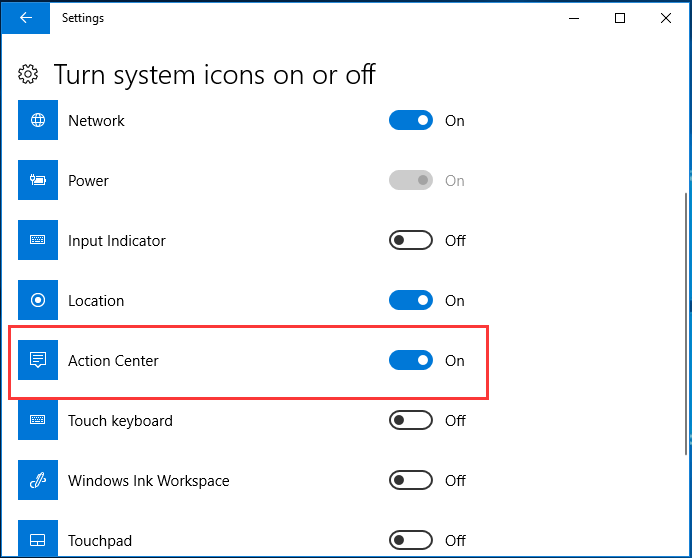
Mastering the Action Center in Windows
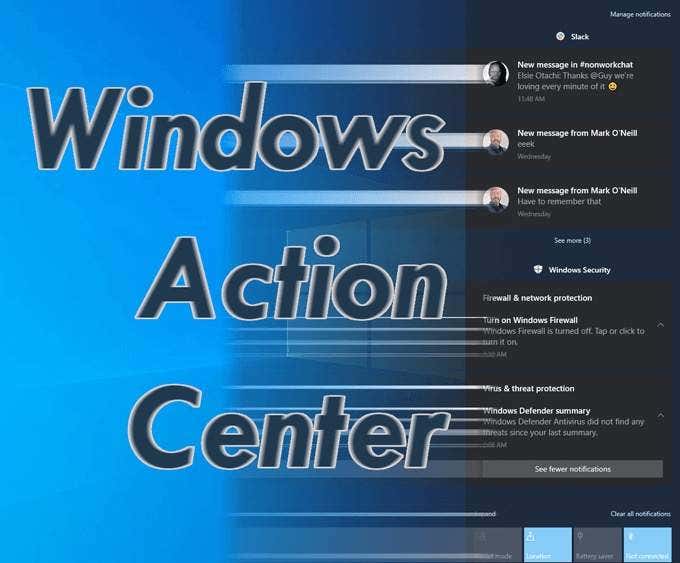
When using a modern operating system, managing the sheer volume of alerts, updates, and device settings can easily become overwhelming. This is where the action center comes into play. Designed to act as a centralized hub for your digital life, this feature brings together system notifications and essential hardware controls into a single, easily accessible panel.
Whether you are trying to silence incoming distractions during a presentation or quickly toggle your Wi-Fi network, understanding how to navigate this tool will save you valuable time. In this guide, we will explore what this feature does, how to customize it, and how to make the most of it in your daily workflow.
Understanding the Action Center and Its Purpose
At its core, the tool serves two main functions: displaying notifications from apps and the operating system, and providing quick access to frequently used settings. Instead of forcing you to dig through layers of system menus to adjust your screen brightness or turn on Bluetooth, it places these controls right at your fingertips.
Over successive operating system updates, Microsoft has refined how users interact with these alerts. In Windows 10, the feature retained the traditional side-panel notification center look. In Windows 11, the experience was split slightly—separating quick settings from the notification panel—but the core philosophy of unified management remains identical.
Key Features and Capabilities
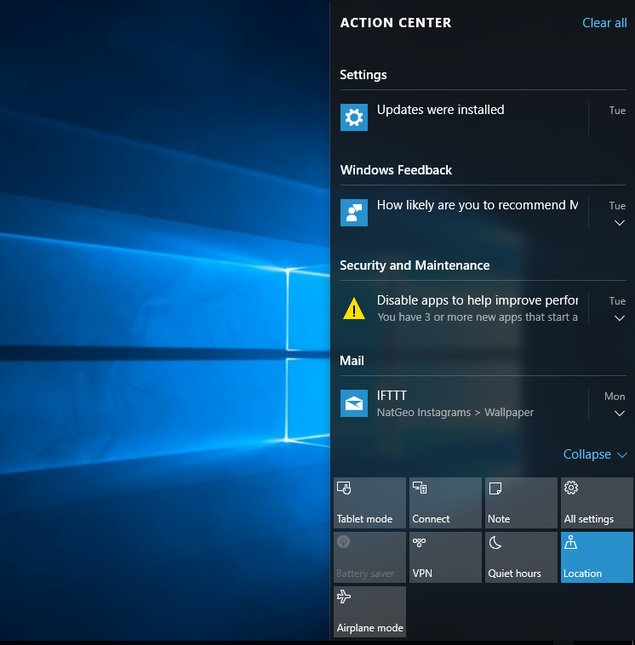
Before diving into customization, it helps to know what tools are housed within this interface. Most versions provide:
- App Notifications: Real-time alerts from email clients, messaging apps, and calendar reminders.
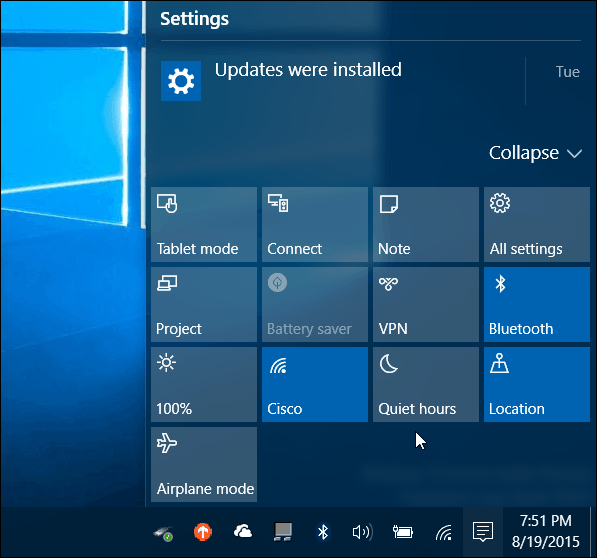
- Quick Actions: One-tap buttons for Wi-Fi, Bluetooth, Airplane Mode, Battery Saver, and Night Light.
- System Prompts: Security warnings, Windows Update reminders, and maintenance alerts.
How to Open and Navigate the Interface
Accessing the panel takes only a fraction of a second, regardless of whether you prefer using a mouse, keyboard, or touchscreen.
- Keyboard Shortcut: Press the Windows Key + N (on Windows 11) or Windows Key + A (on Windows 10) to instantly open the panel.
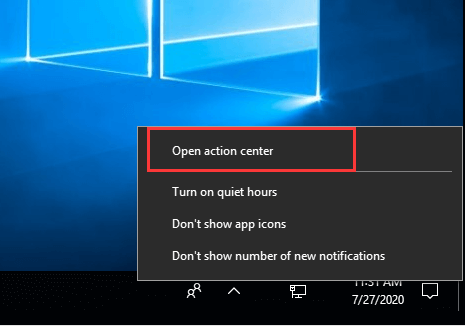
- Taskbar Icon: Click on the notification bell icon located on the far right of your taskbar.
- Touchscreen Gesture: Swipe inward from the right edge of your screen if you are using a tablet or touch-enabled monitor.
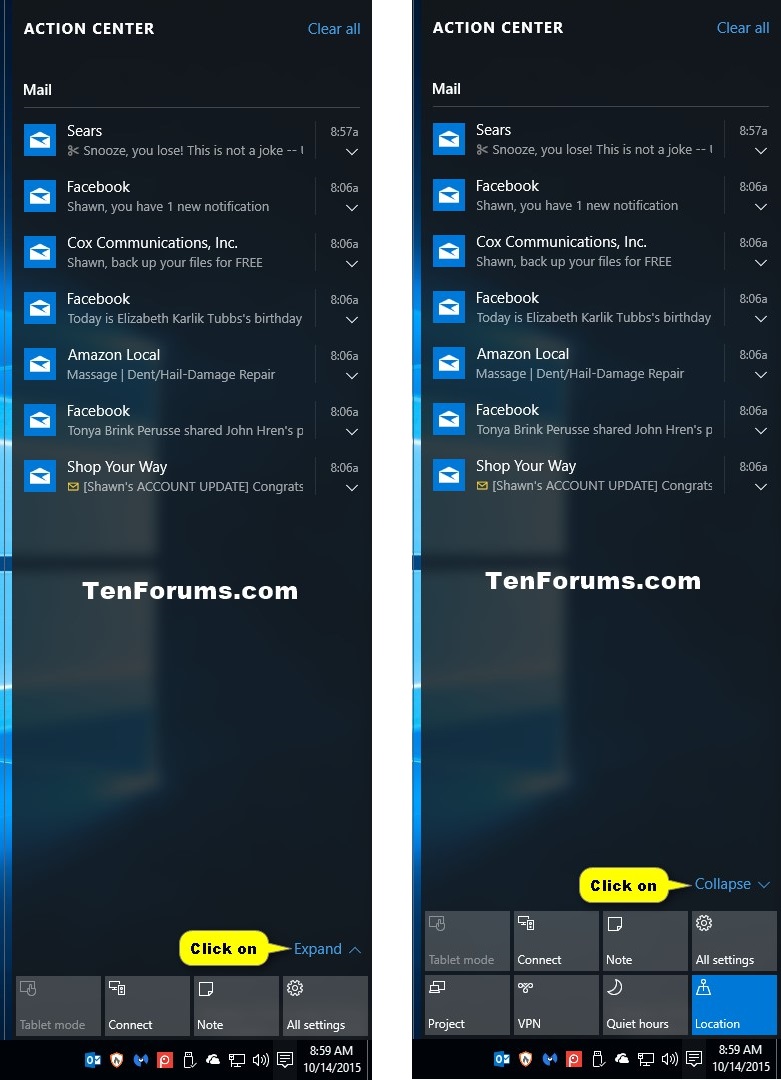
Once open, you will see your recent notifications stacked vertically, often grouped by application. At the bottom or integrated into the panel, you will find the quick action tiles.
Customizing Your Experience
Video: The Action Center
To get the most out of the panel, you should tailor it to fit your personal workflow. Leaving every single application enabled to send alerts will quickly lead to notification fatigue.
Managing App Notifications
You can control which programs are allowed to interrupt you and how those alerts are displayed:
- Open the main system Settings app (Windows Key + I).
- Navigate to System > Notifications.
- Scroll through the list of apps and toggle off any programs that do not require your immediate attention.
- Click on individual app names to change whether their alerts show banners, play sounds, or appear on the lock screen.
Arranging Quick Actions
The grid of shortcut tiles at the bottom of the panel can be rearranged to suit your habits. If you rarely use the Project button but rely heavily on Nearby Sharing, you can swap them out.
- Open the panel using your preferred shortcut.
- Right-click anywhere inside the quick settings area and select Edit quick settings (or click the pencil icon).
- Drag tiles to reorder them, remove ones you never use, or click Add to include new shortcuts like Accessibility or Casting options.
Using Focus Assist to Minimize Distractions
One of the most powerful companion features built into this system is Focus Assist (sometimes referred to as Do Not Disturb in newer updates). If you need to write a report, join a video call, or play a game without interruption, this tool suppresses banner notifications and hides alert sounds.
You can activate Focus Assist quickly from the quick actions grid. Furthermore, you can configure automatic rules so that it turns on automatically during specific hours, while playing full-screen games, or when projecting your screen to a second display.
Troubleshooting Common Issues
Like any software component, the notification and quick settings interface can occasionally run into glitches. If your panel fails to open or notifications stop appearing, try these troubleshooting steps:
- Restart Windows Explorer: Press Ctrl + Shift + Esc to open Task Manager, find Windows Explorer in the list, right-click it, and select Restart.
- Check System Updates: Ensure your operating system is fully up to date, as Microsoft frequently patches interface bugs in cumulative updates.
- Toggle Notifications Off and On: Go into the main settings menu and perform a hard reset of your notification toggles to clear out stuck cache data.
Conclusion
Mastering this central notification and control hub transforms how you interact with your computer. By taking a few moments to prune unnecessary app alerts, arrange your favorite quick actions, and utilize focus modes, you can eliminate digital clutter and stay firmly in control of your workflow.