Nearpod Join: Quick Guide to Enter Any Lesson
Whether you are a student sitting down for a live classroom presentation or a remote participant tuning into an interactive training, entering a session should take seconds. When a teacher or presenter launches an interactive slide deck, participants use the nearpod join portal to enter the virtual room and interact with polls, quizzes, 3D models, and open-ended questions in real time.
This guide walks you through the step-by-step process of joining any Nearpod session across different devices, explains the difference between session types, and details how to fix common connection issues on school or home networks.
How to Use Nearpod Join with a Lesson Code
The standard way to access a session is via a unique, five-character alphanumeric code generated by the presenter (for example, ABCDE or 9X4K2). You do not need to create a paid account or download special software to join on a computer.
Joining via a Web Browser (Chrome, Safari, Edge, Firefox)
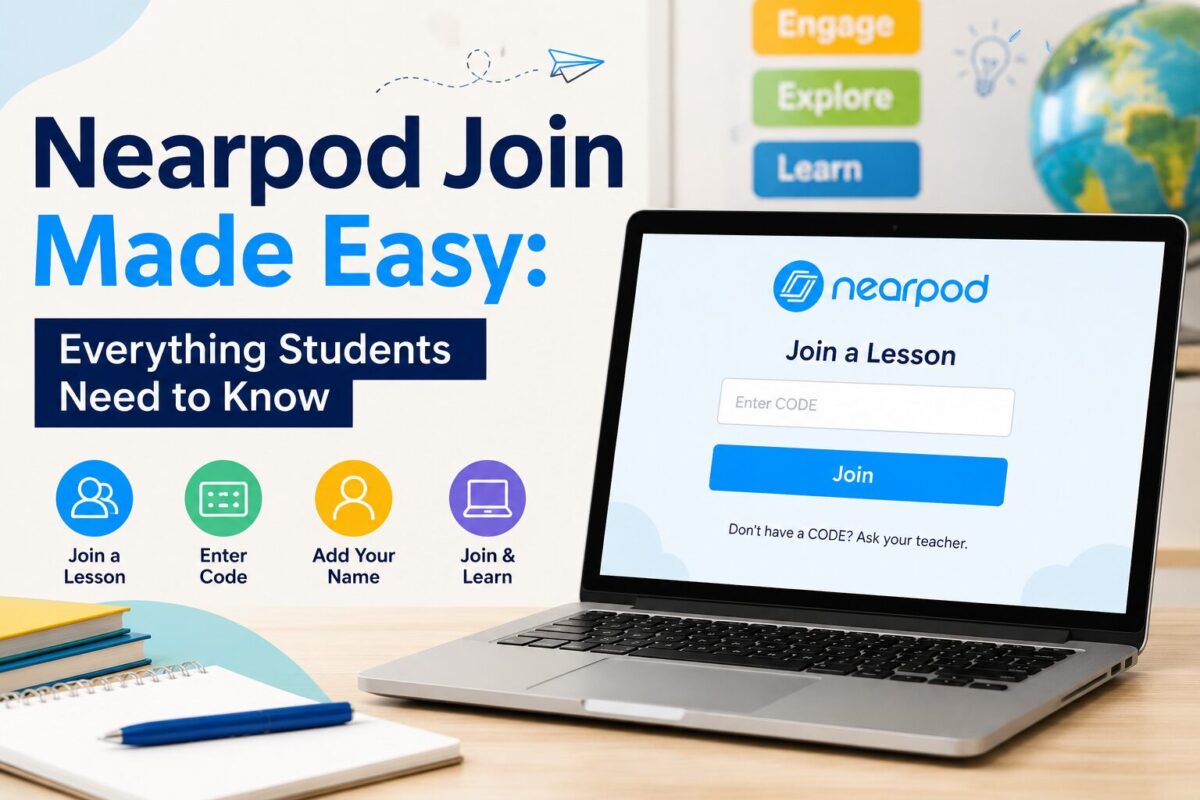
- Open your web browser and navigate directly to join.nearpod.com (or go to nearpod.com and locate the student entry box at the top of the page).
- Type the five-character lesson code provided by your instructor into the text field labeled Enter CODE.
- Click the blue arrow or press Enter.
- On the screen that follows, enter your real name (and an optional nickname or secondary identifier, like your student ID or table group, if requested by your teacher).
- Click Join Session to load the first slide.
Joining on iOS or Android Devices
While you can use a mobile browser like Safari or Chrome on mobile devices, downloading the dedicated Nearpod app often delivers smoother performance during resource-heavy activities like virtual field trips (VR) or interactive simulations.
- Download and launch the free Nearpod app from the Apple App Store or Google Play Store.
- On the home screen, tap the field labeled Enter Code.
- Type in the five-character code and tap Submit.
- Type your name and tap Join.
Joining via a Direct Link or QR Code
Instructors frequently bypass the code-entry step altogether by sharing a direct link or displaying a QR code on an overhead projector:
- Direct URL: If your teacher posts a link in a chat (such as Zoom, Microsoft Teams, or Google Meet), click it. The link automatically embeds the access code, taking you directly to the name entry screen.
- QR Code: Open your smartphone or tablet camera, point it at the projected QR code, and tap the notification banner that appears to open the session directly in your browser or app.
Joining Nearpod Through an LMS (Canvas, Google Classroom, Schoology)
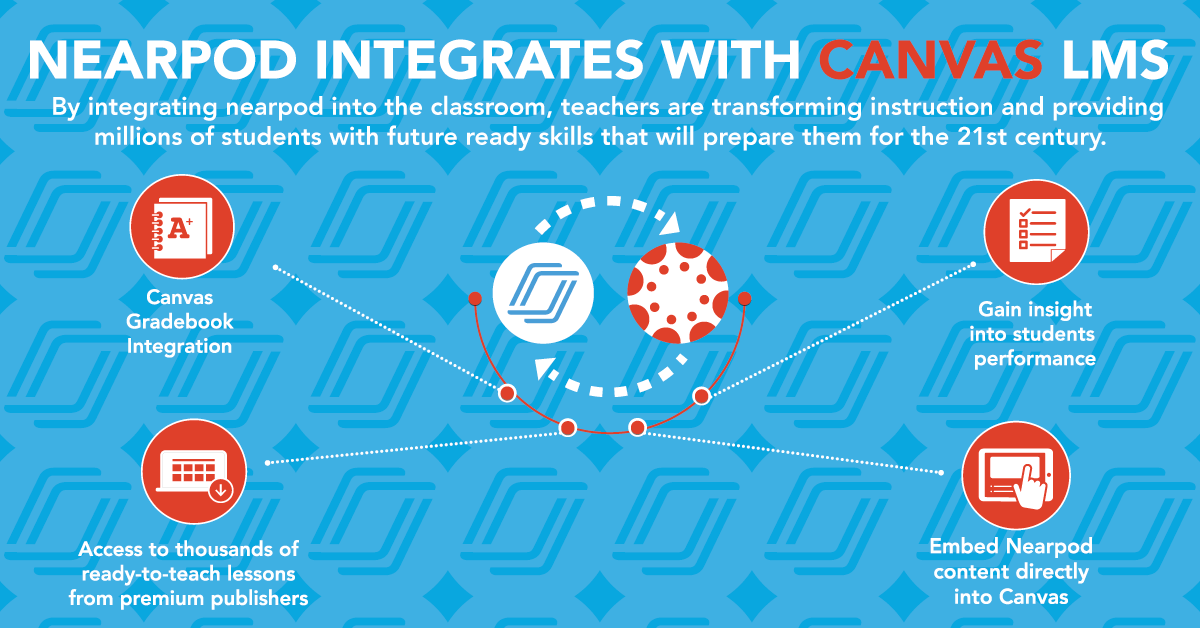
Many schools integrate Nearpod directly into their Learning Management System (LMS). If your instructor assigns a Nearpod lesson through an LMS, you typically do not need to enter a five-letter code at all.
Google Classroom
When an assignment contains a Nearpod attachment, click the assignment link within your Classroom feed. If prompted, select Sign in with Google and choose your school email account. The lesson will authenticate you automatically, submit your score directly to your teacher's gradebook, and display the slides right inside your browser window.
Canvas
Log in to your Canvas course and locate the assignment under the Modules or Assignments tab. Once you click into the task, Nearpod will load in an embedded frame (or via an external tab). Because Canvas communicates your student credentials behind the scenes, you do not need to type in your name or an access code.
Schoology
Navigate to your course materials and select the Nearpod assignment item. Depending on how your school administrator configured the integration, you may be prompted to approve access once. After that, the lesson will display inside the Schoology interface.
Do You Need an Account to Join Nearpod?
No. Students and attendees do not need a Nearpod account to join a lesson. You only need the access code and a name so the presenter knows who is answering questions.
The only exception occurs when an instructor enforces an institutional single sign-on (SSO) policy. In this case, when you enter the code, Nearpod will present a prompt saying Sign in with Google or Sign in with Microsoft Office 365. You simply log in using your school-issued email credentials. This ensures your answers link directly to your official academic profile without requiring you to manage a separate Nearpod password.
Live Participation vs. Student-Paced Sessions: Key Differences
When you join, your experience depends entirely on which mode the presenter selected when launching the lesson.
- Live Participation: The teacher controls the pace of the lesson. You cannot advance slides or skip ahead on your own. When the teacher moves to the next slide, your screen updates automatically. If the teacher launches a collaborative board, quiz, or poll, the interactive element appears on your screen instantly.
- Student-Paced: You navigate the slides at your own speed using on-screen navigation arrows. Student-paced lessons are common for homework, asynchronous study days, or flipped classroom assignments. These links remain active until the teacher's set expiration date.
Troubleshooting Common Nearpod Join Issues
If you encounter an error when trying to enter a lesson, run through this checklist to resolve the problem quickly:
1. "Invalid Code" Error
This is the most common issue participants encounter. Double-check the following:
- Verify that you have not confused the number
0with the letterO, or the number1with the capital letterI. - Ask the host to confirm the code. Nearpod codes expire when an active session ends, so your teacher may need to generate a fresh code if the previous session was closed.
2. Stuck on the Loading Screen / White Screen
If the screen freezes while trying to enter the room, browser extensions or cache conflicts are usually the culprits.
- Refresh the page: A simple hard refresh (Ctrl + F5 on Windows; Cmd + Shift + R on Mac) clears the temporary cache and reloads the assets.
- Disable aggressive ad-blockers: Ad-blocking extensions often mistake Nearpod's real-time WebSockets and tracking scripts for unwanted trackers, breaking the connection. Whitelist
nearpod.comor temporarily pause the extension. - Try an Incognito/Private window: This opens a clean session free of third-party extensions, cookies, or conflicting profile data.
3. Disconnected Mid-Session
If your device disconnects during a presentation, do not panic. Simply return to join.nearpod.com, re-enter the same code, and type in the exact same name you used originally. Nearpod's backend will recognize your session and restore your previous responses without duplicating your entry in the teacher's report.
4. School Wi-Fi Firewalls
School and district networks occasionally block external multimedia hosts. If interactive elements like YouTube videos, PhET simulations, or BBC video clips fail to load inside the Nearpod deck, the issue is typically firewall restrictions rather than the platform itself. Alert your teacher or local IT administrator so they can add Nearpod's domain network endpoints to their network whitelist.
Summary Checklist for Joining
- Go to join.nearpod.com on any modern browser.
- Enter the 5-digit session code.
- Input your display name accurately.
- Keep your tab active during live lessons so you don't miss timed activities.