Nox Emulator Download Guide: Install & Setup PC
Running Android apps and playing mobile games on a PC has become immensely popular. Whether you want to enjoy high-graphics battle royales with a mouse and keyboard or manage multiple social media accounts at once, Android emulators offer the versatility you need. Among the various options available, NoxPlayer stands out as one of the most reliable choices for performance and compatibility.

If you are looking to get started, securing a safe nox emulator download is the very first step. This guide covers everything you need to know about downloading, installing, and configuring NoxPlayer on your Windows or Mac computer to ensure a smooth, lag-free experience.
System Requirements for NoxPlayer
Before initiating any download, it is crucial to verify that your computer meets the minimum hardware and software requirements. While Android emulators are designed to run on a wide range of hardware, running heavy 3D games requires decent processing power.
Windows Minimum Specifications
- Operating System: Windows 7, 8, 10, or 11 (Latest service packs recommended)
- Processor: Dual-core Intel or AMD CPU with virtualization support (VT-x or AMD-V)
- Graphics: OpenGL 2.0 or higher compatible GPU
- Memory: At least 2GB of RAM (4GB or more recommended)
- Storage: 1.5GB of free space for installation, plus additional space for app data
Mac Minimum Specifications
- Operating System: macOS Sierra 10.12 or newer
- Processor: Dual-core Intel or Apple Silicon (with Rosetta 2 compatibility)
- Memory: 4GB of RAM
- Storage: 2GB of free disk space
Step-by-Step Nox Emulator Download Guide
Downloading and installing NoxPlayer is straightforward, but you must ensure you obtain the installer from a trusted source to avoid malicious software bundles. Follow these steps to get the software safely onto your system:
- Visit the Official Website: Open your preferred web browser and navigate to the official NoxPlayer website (bignox.com). Avoid third-party mirror sites that might host modified or outdated installation files.
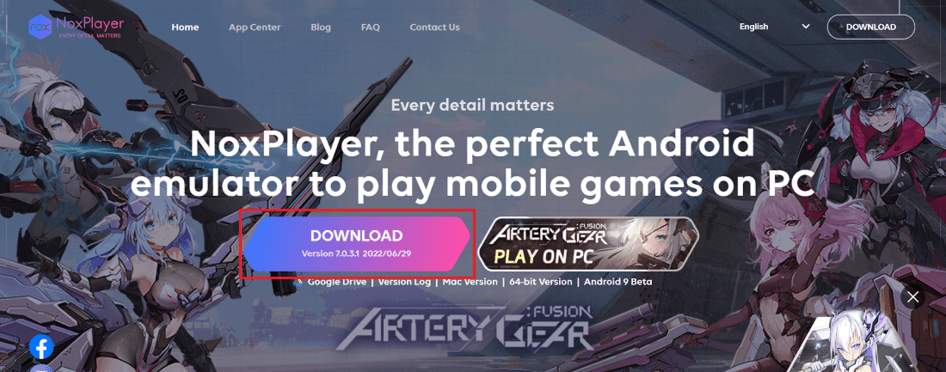
- Select Your Operating System: Locate the prominent download buttons on the homepage. Choose either the Windows version (.exe) or the Mac version (.dmg) depending on your computer's operating system.
- Save the Installer: Click the download link and save the setup file to an easily accessible location, such as your desktop or your system's Downloads folder. The file size is typically around 500MB to 600MB, so the download time will depend on your internet connection speed.
Installing and Setting Up the Emulator
Once the download is complete, you are ready to set up the software on your machine. Proper configuration during installation can prevent common performance bottlenecks later on.
Video: How to Download and Install the Latest NOX Player Android Emulator Update 2026 on a Windows 10/11...
Running the Installer
Double-click the downloaded installer file to launch the setup wizard. On Windows, you may receive a User Account Control (UAC) prompt asking for permission to make changes; click "Yes" to proceed. Review the end-user license agreement, choose a custom installation directory if desired (though the default path is usually fine), and click "Install."
The installation process will unpack the necessary system files, virtual machine components, and Android environment frameworks. This usually takes between one to three minutes.
First Boot and Google Play Login
After the installation finishes, click "Start" to launch NoxPlayer for the first time. The initial boot sequence may take slightly longer as the emulator initializes its virtual hardware and Android operating system.
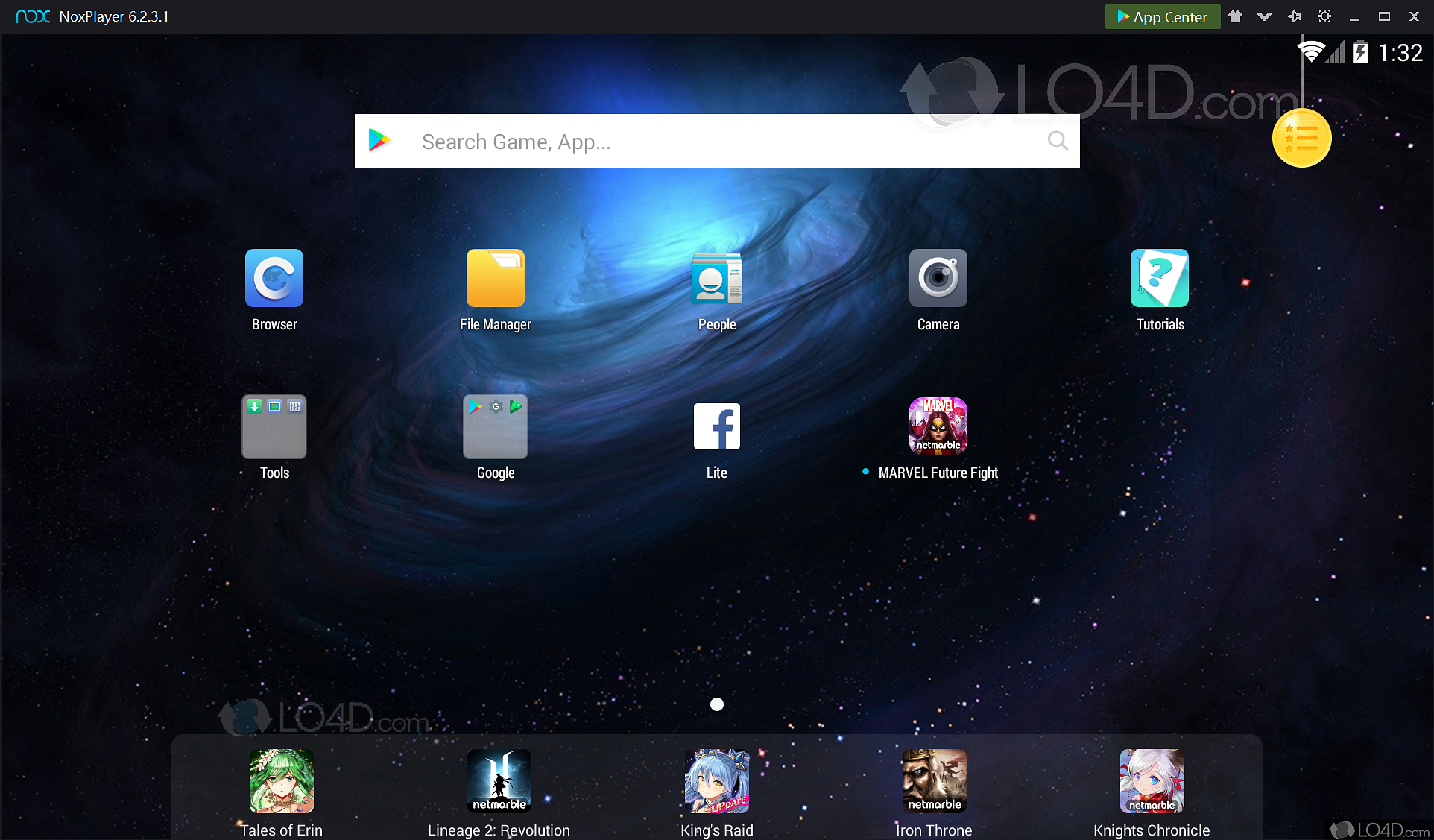
Once the Android home screen appears, you will need to sign in with your Google account, just like setting up a brand-new Android smartphone or tablet. Logging in is essential if you want to download games and apps directly from the Google Play Store or sync your game progress across devices.
Tips for Optimal Performance
To get the absolute best out of your emulator, consider applying these essential optimization tweaks:
- Enable Hardware Virtualization (VT): Access your computer’s BIOS or UEFI settings during startup and enable Intel VT-x or AMD-V. This single setting dramatically increases emulator speed by allowing direct communication between the virtual machine and your CPU.
- Allocate CPU and RAM Resources: Open the NoxPlayer settings menu (gear icon in the top right). Under the "Performance" tab, allocate more CPU cores and RAM based on your PC's specifications. If you have an 8-core CPU and 16GB of RAM, assigning 4 cores and 4GB of RAM to Nox provides a great balance.
- Change Graphics Rendering Mode: If you experience visual glitches or crashes in certain games, switch between DirectX and OpenGL rendering modes in the Nox settings panel.
- Keep Drivers Updated: Ensure your graphics card drivers are up to date to maintain maximum compatibility with modern mobile game engines.
By following this guide, you can successfully complete your nox emulator download, install the software without issues, and dive straight into your favorite mobile applications on a larger screen.