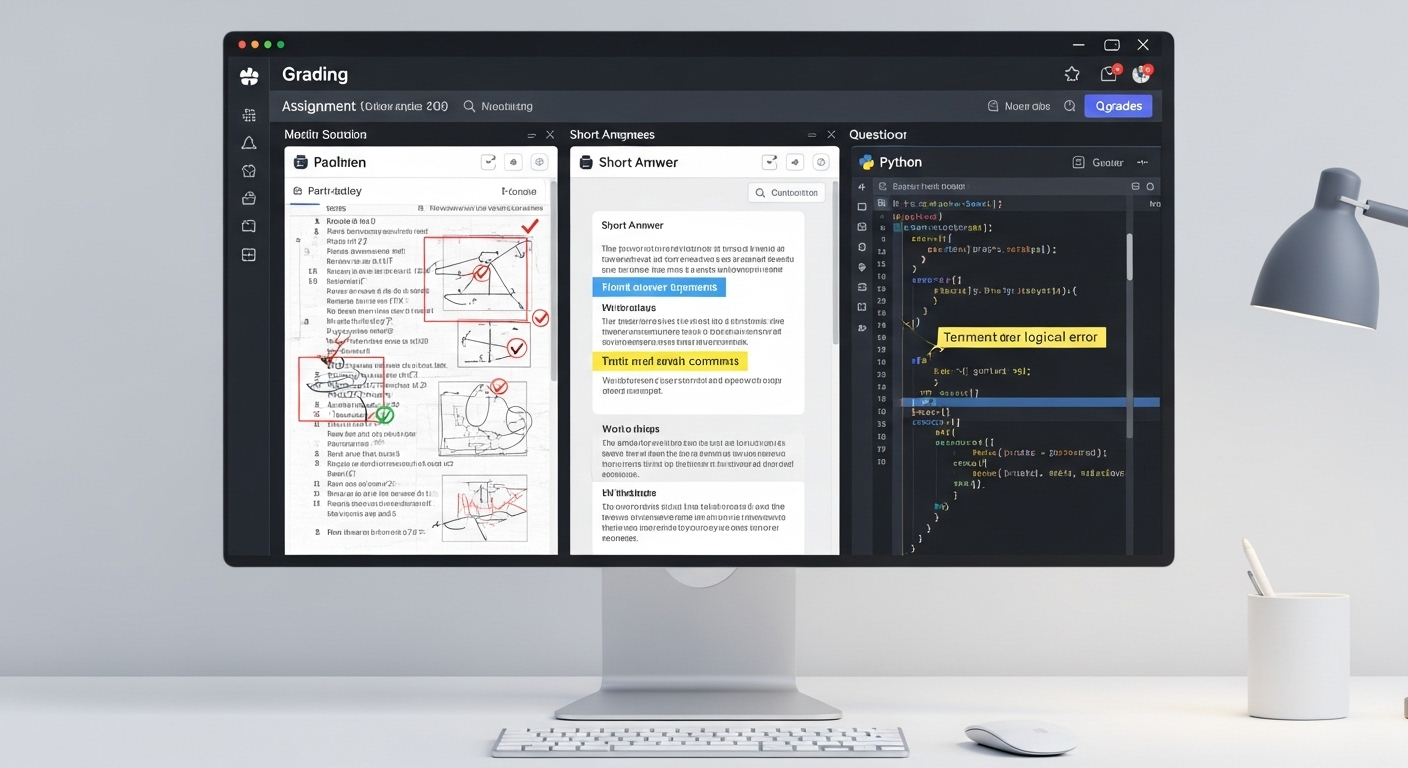
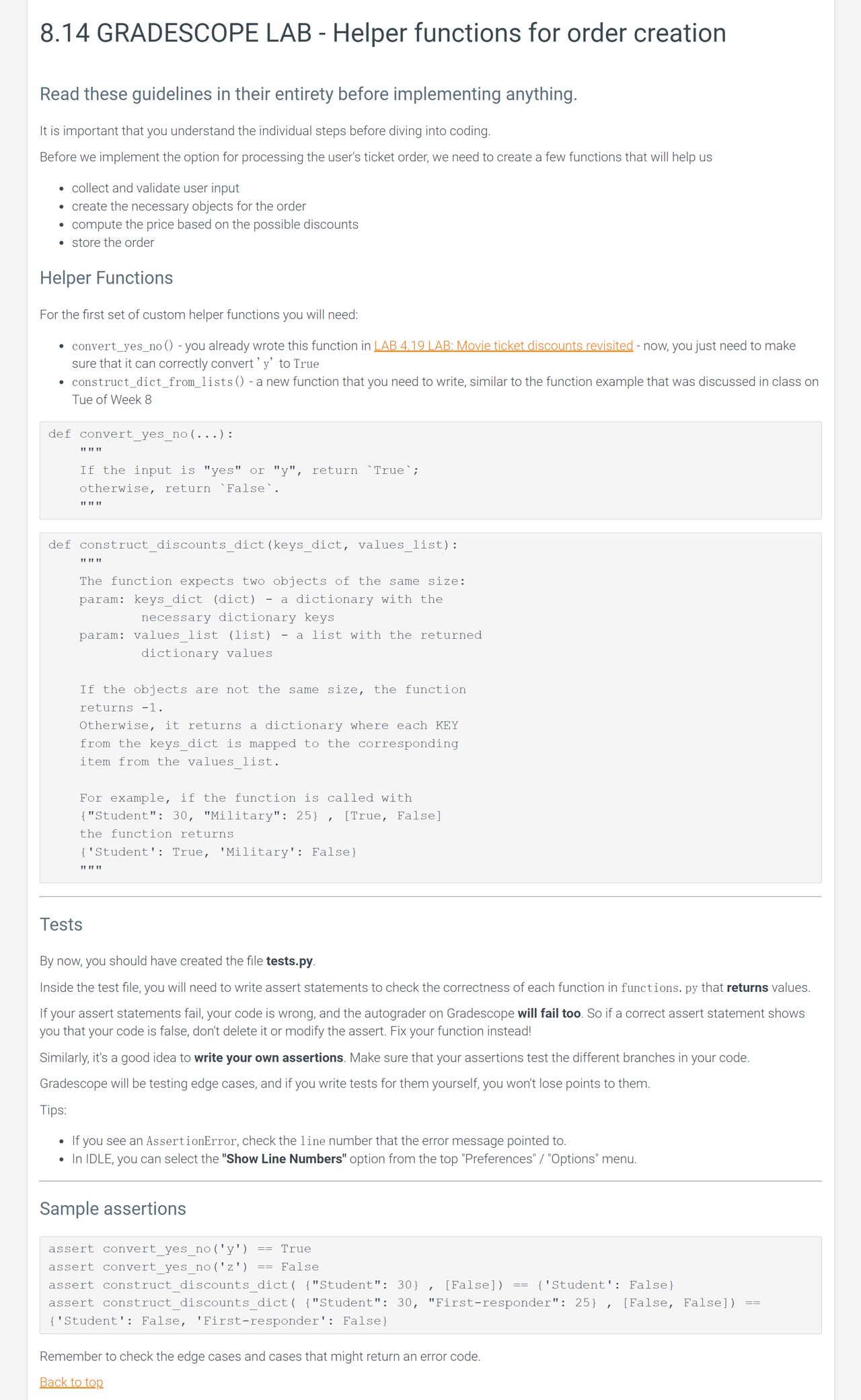
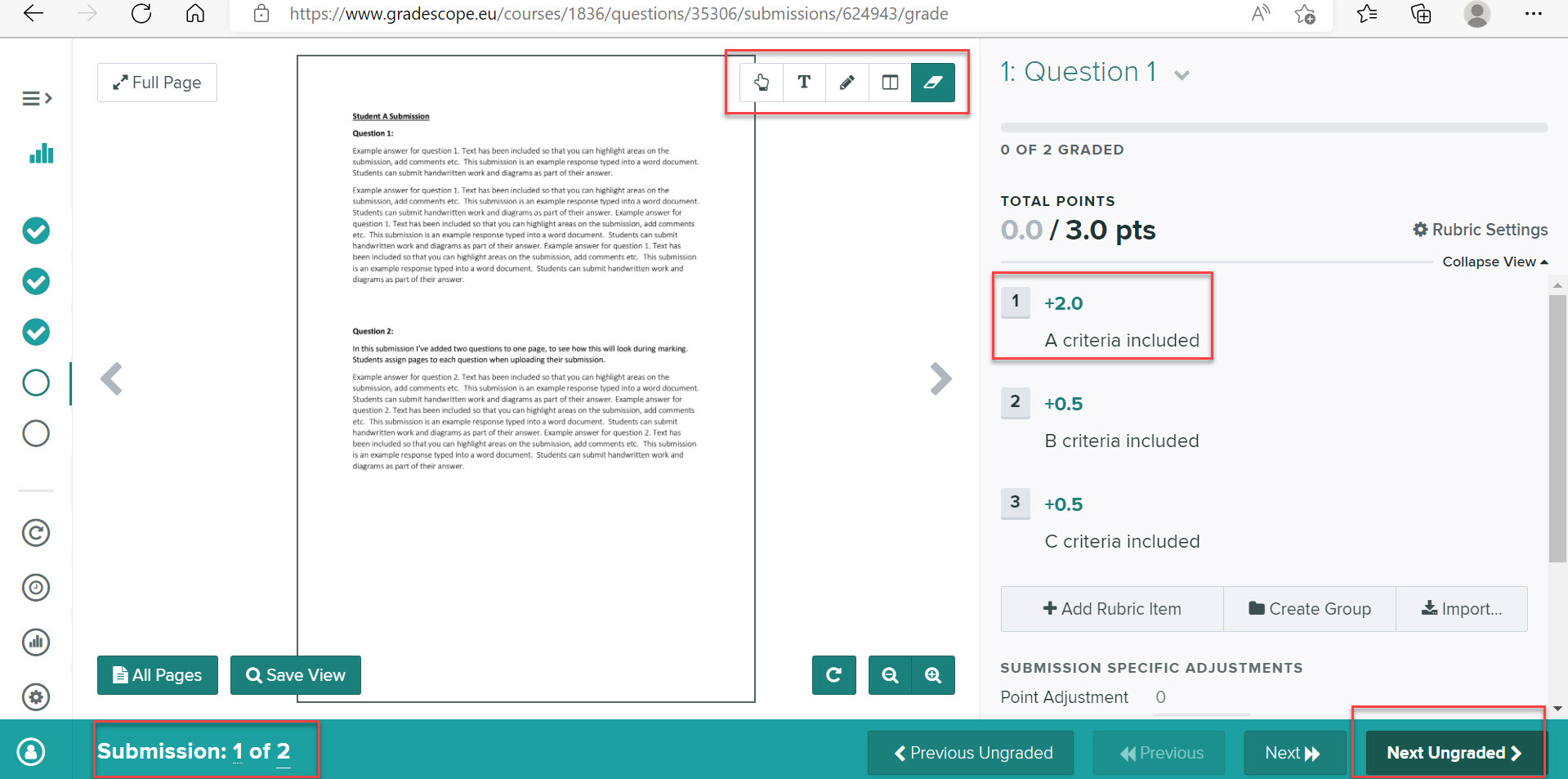
Optimize UIUC Gradescope Workflow With A4 Prints
Mastering the UIUC Assignment Workflow

For students at the University of Illinois Urbana-Champaign (UIUC), Gradescope has become the ubiquitous platform for submitting and grading homework, exams, and projects. Whether you are studying computer science in the Siebel Center, engineering in ECEB, or mathematics in Altgeld Hall, digital submission platforms dictate how you format your academic life. However, a hidden friction point trips up hundreds of students every semester: paper sizing discrepancies. When professors provide templates or require handwritten math and physics proofs scanned into the portal, minor formatting mismatches can ruin an otherwise perfect submission.
To bypass these frustrating technical penalties, you need to deliberately optimize your UIUC Gradescope workflow with A4 prints. Understanding why document sizing matters and how to adapt your printing habits will save you from grading deductions caused by clipped margins, misaligned QR codes, and automatic scaling errors.
The Gradescope Sizing Dilemma at UIUC
Gradescope relies heavily on algorithmic template matching. When you or your Teaching Assistants (TAs) scan physical papers back into the system, the platform overlays a digital template to map out where your answers should be. It looks for specific anchor points, bounding boxes, and alignment markers.
Letter vs. A4: The Core Conflict
In the United States, standard printer paper is Letter size (8.5 x 11 inches). However, many academic templates, international problem sets, and open-source problem banks originate in Europe or are designed with metric-standard A4 paper (8.27 x 11.69 inches). When a UIUC student prints an A4-designed PDF onto standard US Letter paper—or vice versa—without adjusting print settings, default printer software will often try to "Fit to Page." This scaling operation subtly warps the dimensions of the document.
Why Scaling Destroys Your Score
Even a 3% scaling shift changes the physical coordinates of your handwritten answers relative to the digital bounding boxes on Gradescope. When the automated script or the grader tries to read your submission, your work might bleed outside the designated grading region. TAs grading dozens of stacks in rapid succession may miss clipped answers entirely, forcing you to file regrade requests that take days or weeks to resolve.
How to Optimize UIUC Gradescope Workflow With A4 Prints
Implementing a seamless printing and scanning routine requires just a few adjustments to your daily habits. By taking control of the physical-to-digital bridge, you ensure your hard work is accurately represented on screen.
1. Source A4 Paper for Specific Classes
If your professor explicitly notes that a homework template is formatted for A4 paper, do not force it onto Letter paper. While A4 paper is slightly less common in standard US campus supply stores, you can easily order reams online or check if your department's computer lab stocks metric paper. Keeping a small stash of A4 paper in your backpack ensures you are never caught unprepared right before a 11:59 PM submission deadline.
If buying a whole ream feels excessive, check with your course's student association or study groups. Often, peers are more than willing to trade a few sheets.
2. Adjust Your PDF Reader Print Settings
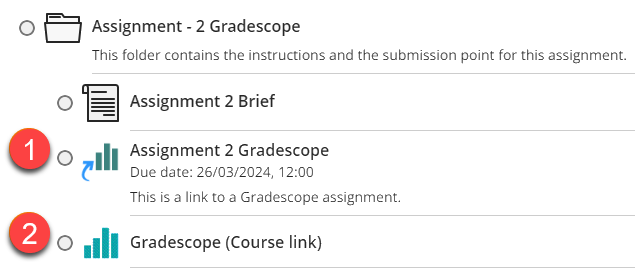
Never rely on default browser PDF viewers (like Chrome or Firefox) when printing academic assignments, as they offer zero control over document scaling. Always open your PDFs in dedicated software like Adobe Acrobat Reader or a robust desktop PDF suite.
- Check the Scale: Ensure the scaling option is set strictly to "Actual Size" (100%) or "None" rather than "Fit" or "Shrink to Fit."
- Verify Orientation: Match the orientation setting (Portrait or Landscape) exactly to the document design.
- Inspect Margins: Look at the print preview to ensure the outer tracking boxes and QR codes (if present) are completely visible within the printer's unprintable margin boundaries.
3. Scan Back with Precision
Once you fill out your A4-printed assignment, scanning it back into a PDF requires equal care. Avoid taking casual smartphone photos in dim dorm lighting, which introduce shadows and skew the page geometry. Instead, use dedicated scanning applications like Adobe Scan, Genius Scan, or the built-in document scanner in iOS Notes.
- Place your A4 paper on a dark, flat contrasting surface.
- Allow the app to automatically detect the edges of the A4 sheet.
- Export the final compilation as a clean, high-contrast black-and-white or grayscale PDF.
- Double-check that all pages are oriented vertically and in the correct numerical order before uploading to Gradescope.
Leveraging Campus Resources at UIUC
Printing infrastructure at UIUC is robust, but not all printers are created equal. If you live in university housing or frequent campus libraries like Grainger Engineering Library or the Main Library, take note of what your printer options support.
Most campus computer labs feature multi-function printers that allow manual paper tray feeding. If you need to print a batch of A4 problem sets, you can slide individual sheets or load the multipurpose tray with your A4 ream. Always run a single test page before sending a 10-page homework packet to the printer queue. Spending thirty seconds on a test print prevents wasted paper and ensures your layout is completely pristine.
Troubleshooting Common Gradescope Submission Errors
Even with careful preparation, unexpected issues can occasionally arise during the submission process. Knowing how to troubleshoot keeps your stress levels low.
Mismatched Page Counts
If Gradescope rejects your PDF due to page count mismatches, it usually means your scanning app captured blank backsides or split a single A4 page into two digital frames. Use a PDF management tool to delete extraneous pages and ensure your question-to-page mapping matches the instructor's assignment outline.
Blurry Alignment Markers
If your scanned document has blurry corners where the alignment dots reside, the Gradescope auto-grader may flag the submission as unreadable. Re-scan the affected page under brighter, diffused lighting to ensure crisp edges that the AI can effortlessly parse.
Conclusion
Navigating rigorous coursework at UIUC demands attention to detail, and your homework submission process should be no exception. By taking proactive steps to optimize your UIUC Gradescope workflow with A4 prints, you eliminate technical variables that lead to lost points. Protect your GPA, reduce your reliance on stressful regrade requests, and ensure your actual knowledge—not a printing error—is what gets graded.