Rutgers Self Service: Complete Portal Guide
Rutgers University relies on a robust digital infrastructure to serve tens of thousands of undergraduate students, graduate scholars, faculty members, and administrative staff across its campuses in New Brunswick, Newark, Camden, and Rutgers Health. However, navigating rutgers self service applications can initially feel fragmented due to the sheer size of the institution and the distinct platforms used for academic, financial, and employment records. Whether you need to view your semester term bill, register for classes, or download your annual W-2 form, understanding how these self-service systems connect will save you significant time and effort.

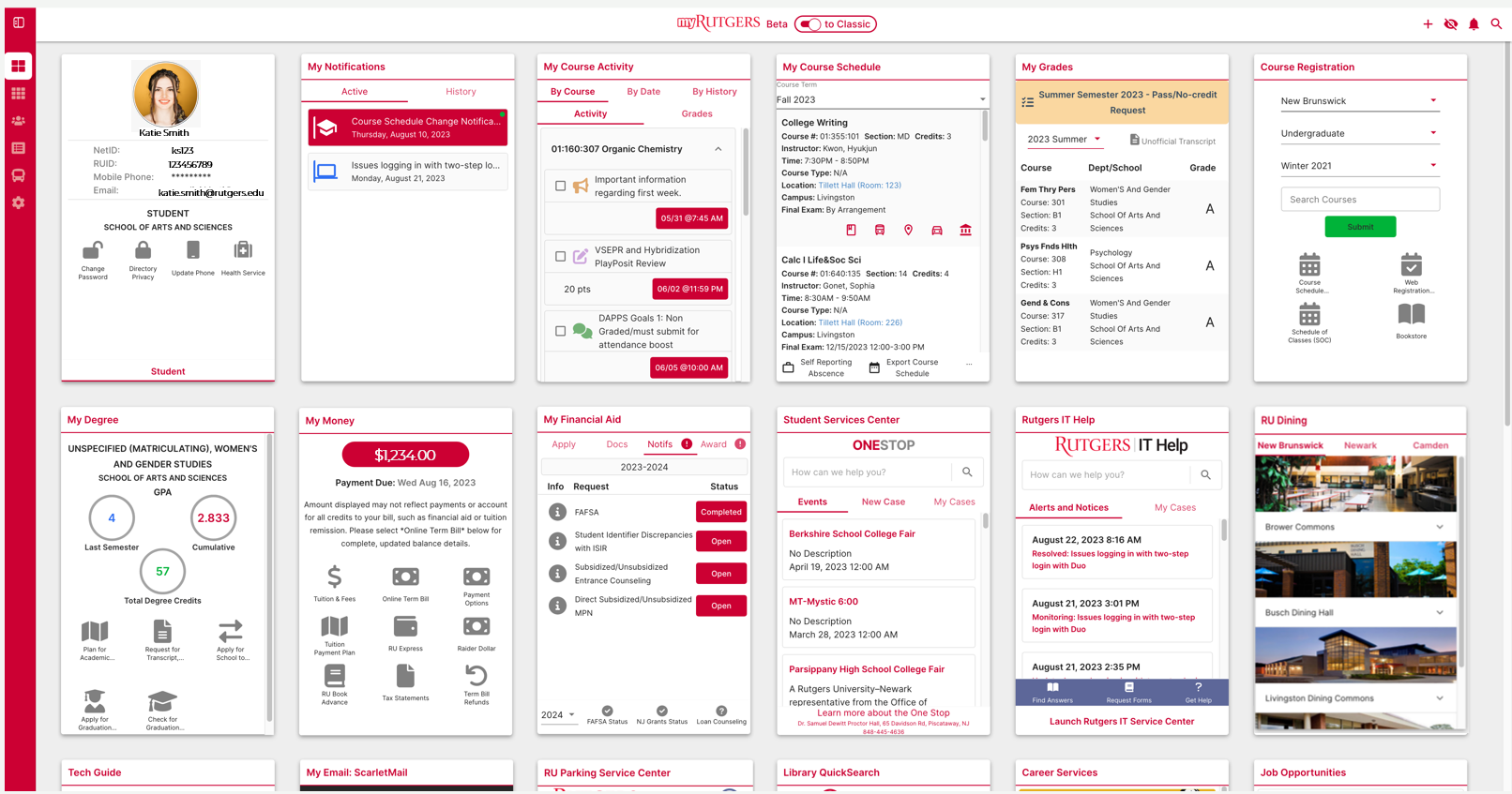
The Core Hub: Accessing the myRutgers Dashboard
For almost every administrative task at Rutgers, the journey begins at the official institutional dashboard: my.rutgers.edu. This central dashboard consolidates various legacy tools and modern cloud platforms into a customizable, single-sign-on (SSO) interface.
To log in to any Rutgers administrative portal, users need two primary credentials:
- Rutgers NetID: An alphanumeric username assigned to all students, faculty, and staff upon enrollment or hiring (e.g., "abc123").
- NetID Password: A secure password created during account activation at netid.rutgers.edu.
- Duo Two-Step Verification: Rutgers mandates multi-factor authentication (MFA) via Duo Security. Users must approve a push notification or enter a generated passcode via a mobile device or hardware token to proceed.
Once authenticated, the dashboard organizes applications into distinct tabs and widgets based on the user's role—whether student, applicant, staff, or faculty member.
Student Self-Service: Academics, Registration, and Billing
Students use self-service platforms from their initial orientation through graduation. The primary functions within the student portal are divided into three broad categories: academic planning, billing and financial aid, and official records.
1. Academic Planning and Course Registration
Course scheduling does not take place directly on the static dashboard; instead, the dashboard links to Rutgers' specialized academic engines:
- WebReg (Web Registration System): The real-time portal where students add, drop, and withdraw from courses during designated registration windows. Access to WebReg depends on earned credits, with priority given to graduate students and upperclassmen.
- Schedule of Classes (SOC): A publicly accessible and internal tool detailing available course sections, instructors, campus meeting locations, and prerequisite requirements.
- Degree Navigator: The university's audit system that tracks degree completion progress. It compares a student's completed and in-progress credits against the specific general education and major requirements of their academic school.
- Canvas: Rutgers' primary Learning Management System (LMS) where students access syllabi, participate in course discussions, submit assignments, and take exams.
2. Financial Aid and Term Bills
Managing the financial cost of attendance occurs primarily through the student accounting widgets within the portal:
- My Financial Aid: This tab allows students to review their financial aid award notices, accept or decline federal student loans, and check the status of FAFSA or NJ Dream Act submissions. Outstanding verification documents must be resolved here before aid can disburse.
- Online Term Bill (OTB): Issued each semester by Student Accounting, Billing, and Cashiering, the term bill reflects tuition, mandatory fees, housing, and meal plans. Students use the payment portal to set up electronic ACH payments, pay via credit card, or enroll in a multi-installment payment plan.
- Student Health Insurance Waiver: Full-time students are automatically billed for the university health insurance plan. If you already maintain adequate healthcare coverage, you must complete the annual online waiver via self-service before the deadline to remove the charge.
3. Transcripts, Grades, and Diplomas
At the end of each semester, instructors submit final grades through the online grading system. Students can review their unofficial transcripts, GPA calculations, and academic standings via the "Grades & Transcripts" section of the dashboard. Official electronic transcript orders are routed through the National Student Clearinghouse directly from the records menu.
Navigating Rutgers Self Service for Faculty and Staff
Employees, including full-time professors, adjunct faculty, postdoctoral researchers, and staff members, interact with institutional systems through a different suite of tools integrated into the university's Enterprise Resource Planning (ERP) platform, known as Cornerstone.
Cornerstone utilizes Oracle Cloud technologies to streamline human resources, payroll, procurement, and project tracking into an enterprise-level self-service experience.
Key Employee Self Service (ESS) Capabilities
- Payroll and Paystubs: Employees can view and download electronic pay statements, examine deductions, verify direct deposit banking details, and view current tax withholding certificates (W-4).
- Tax Documents (W-2 and 1095-C): Instead of waiting for physical mail delivery, employees can opt into paperless delivery to download their annual W-2 earnings statements and health insurance compliance documents as soon as they are processed in January.
- Time and Absence Reporting: Depending on job classification and union bargaining contracts, non-exempt staff submit bi-weekly electronic timesheets, while exempt employees record sick leave, vacation time, and personal holidays through the Cornerstone absence management tab.
- Benefits Management: During open enrollment windows, staff can modify their State Health Benefits Program (SHBP) selections, adjust flexible spending accounts (FSA), and review retirement contributions through links to the New Jersey Division of Pensions and Benefits.
- Personal Profile Maintenance: Update primary residential addresses, emergency contacts, legal and preferred names, and institutional directory listings without submitting manual paperwork.
Applicant and Former Student Access
Administrative self-service does not vanish after graduation or exist solely for enrolled individuals:
- Admissions Application Status: Prospective students monitor the status of their application, submit missing high school transcripts, and accept admission offers via the Rutgers Admissions Portal using their temporary Community ID or newly assigned NetID.
- Alumni NetID Services: Rutgers graduates retain their NetID credentials for a limited duration, transitioning their access to permanent alumni services, such as lifetime email forwarding (ScarletMail) and self-service electronic transcript ordering.
Troubleshooting Common Rutgers Self Service Issues
With thousands of users simultaneously accessing the system during peak times—such as the first day of class registration or W-2 release dates—users may encounter technical roadblocks. Here are the most common issues and how to resolve them:
1. Duo Authentication Failures
If you switch to a new smartphone without transferring your Duo settings, push notifications will fail. Always maintain a backup phone number (such as an office phone or landline) within your Duo profile. If locked out, you must contact the central Office of Information Technology (OIT) to issue a temporary bypass code.
2. Clearing Cache and Browser Conflicts
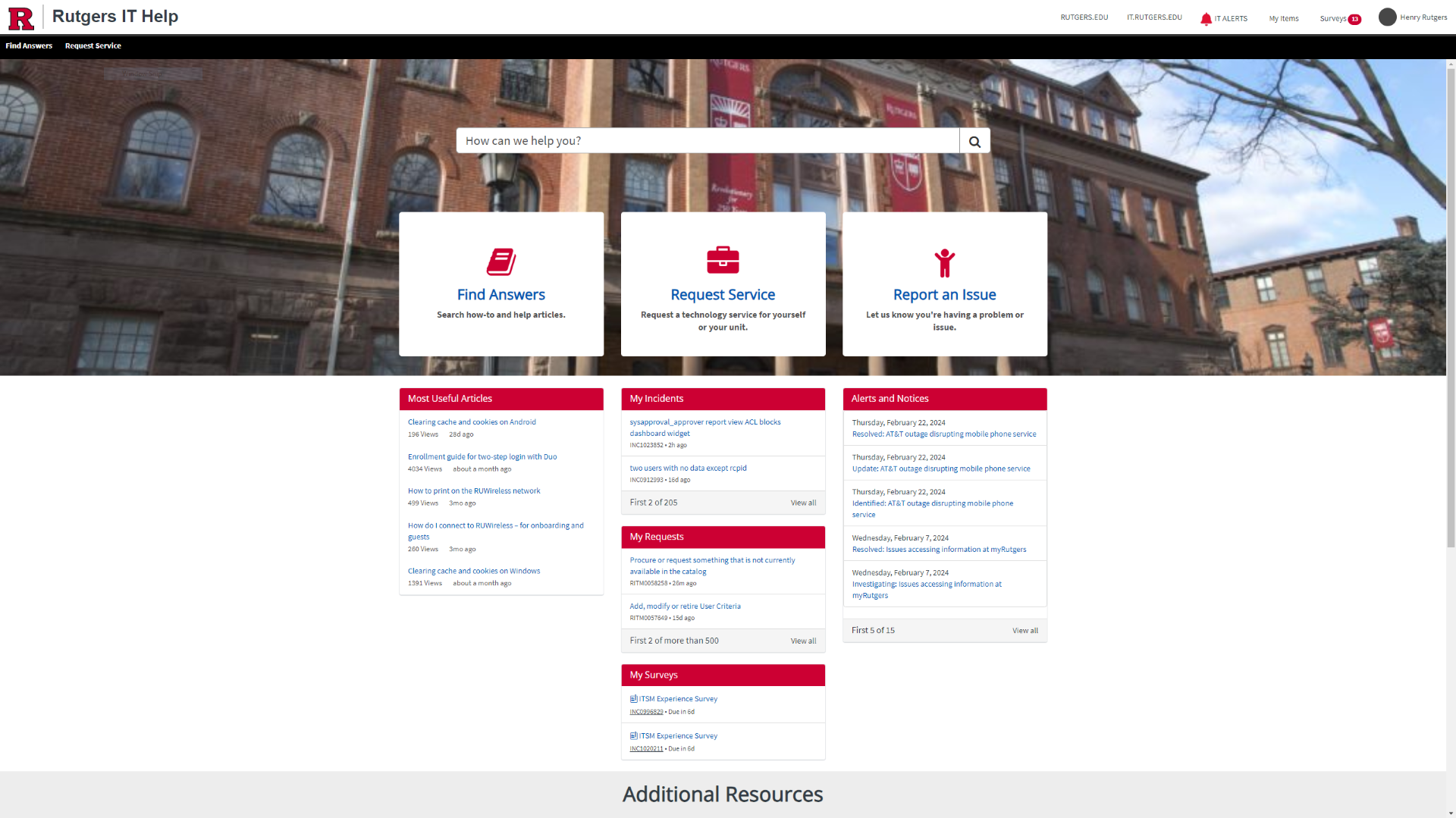
Oracle Cloud (Cornerstone) and older student administrative tools occasionally throw permission errors or blank pages due to stale session cookies. Resolving this typically requires using an incognito or private browsing window or clearing the browser's cache and cookies for all *.rutgers.edu domains.
3. Registration Holds
Attempting to register for courses in WebReg while having an administrative hold will halt your progress. Common holds include unpaid term bill balances, incomplete immunization records with Student Health, or mandatory academic advising flags. Check the "Holds" widget on your myRutgers homepage to identify the issuing department and resolve the block before registration opens.
Best Practices for Account Security
Because self-service portals store sensitive information—including bank routing numbers, social security records, academic histories, and home addresses—maintaining strict account security is critical:
- Never approve a Duo mobile push notification that you did not actively initiate on your computer or device.
- Always log out completely and close all active browser tabs when accessing portals on shared computers located in campus computer labs or public libraries.
- Beware of phishing emails designed to look like official university communications demanding immediate NetID re-validation. Rutgers OIT will never ask for your password via email.
By leveraging the consolidated features of the myRutgers portal and Cornerstone, students and employees can efficiently handle their essential academic, personal, and financial responsibilities from any web-connected device.