Scentsy Pay Portal App: Login, Setup, and Guide
Running a successful independent direct-sales business requires staying on top of your finances. For Scentsy consultants, tracking commissions, bonuses, and retail profits is streamlined through the official Scentsy pay portal app. Whether you are a brand-new consultant waiting for your first paycheck or a seasoned director managing a large team, understanding how to navigate this financial platform is essential.
In this guide, we will walk you through setting up your account, logging in, troubleshooting common errors, and maximizing the tools available on your mobile device.
What Is the Scentsy Pay Portal?
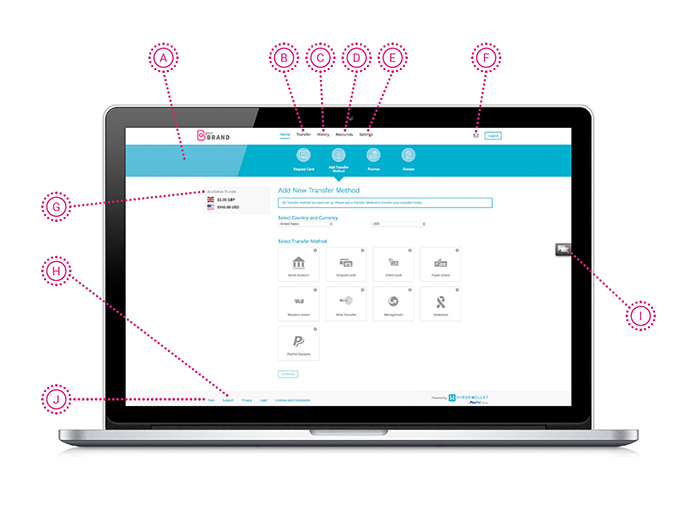
The Scentsy Pay Portal is a secure financial management platform powered by Hyperwallet (a PayPal service). It serves as the digital hub where Scentsy deposits your monthly commissions, personal retail volume bonuses, and leadership earnings. Instead of waiting for physical checks to arrive in the mail, consultants use this system to access their funds quickly and transfer them to bank accounts, debit cards, or digital wallets.
While consultants primarily use the main Scentsy Workstation to run their daily business, the payment ecosystem is tied directly to the pay portal. Having mobile access ensures you can check your balance, track incoming transfers, and manage your payout preferences on the go.
How to Access and Setup the Scentsy Pay Portal App
Getting started with your digital wallet requires a few initial steps through your desktop workstation before you can fully rely on mobile convenience.
1. Initial Registration via the Workstation
Before downloading any third-party apps, you must activate your account through official Scentsy channels:
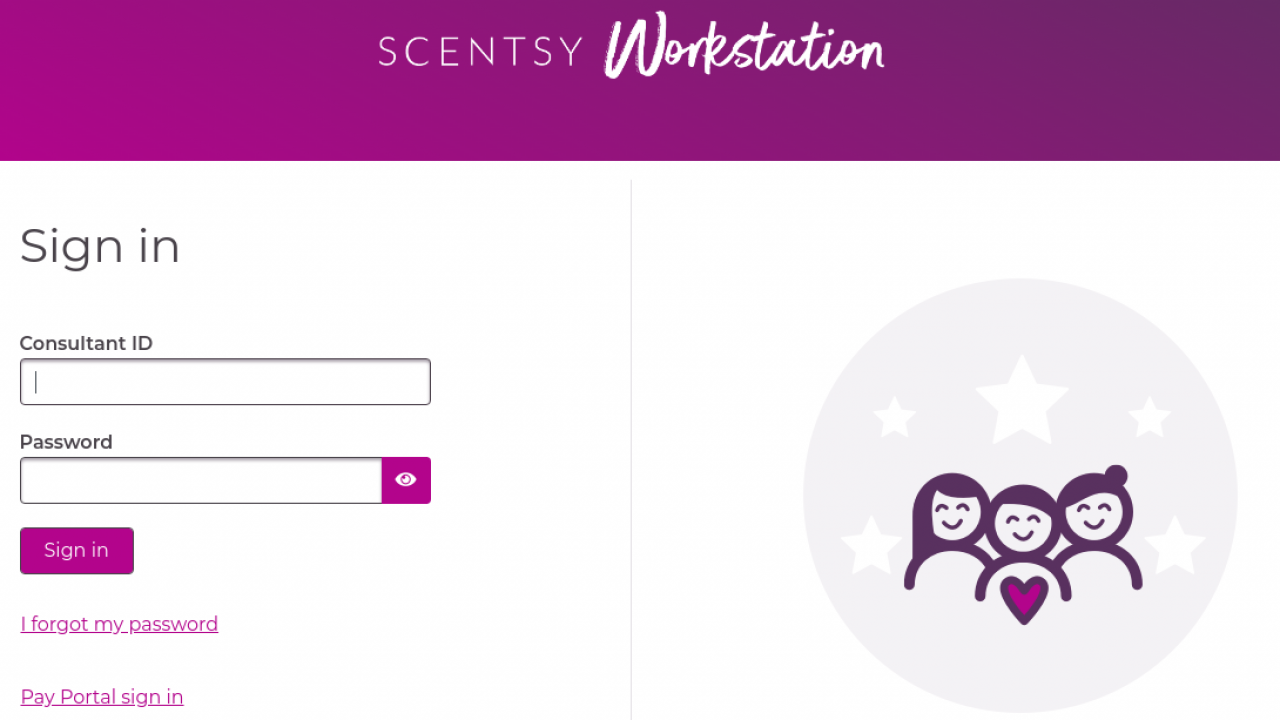
- Log in to your Scentsy Workstation using your Consultant ID and password.
- Navigate to the 'Account' or 'My Commissions' tab.
- Click on the link to set up your Pay Portal for the first time.
- Follow the prompts to verify your identity, set up security questions, and choose your preferred notification settings.
2. Downloading and Logging into the App
Once your Hyperwallet-powered account is active, you can manage it via mobile applications.
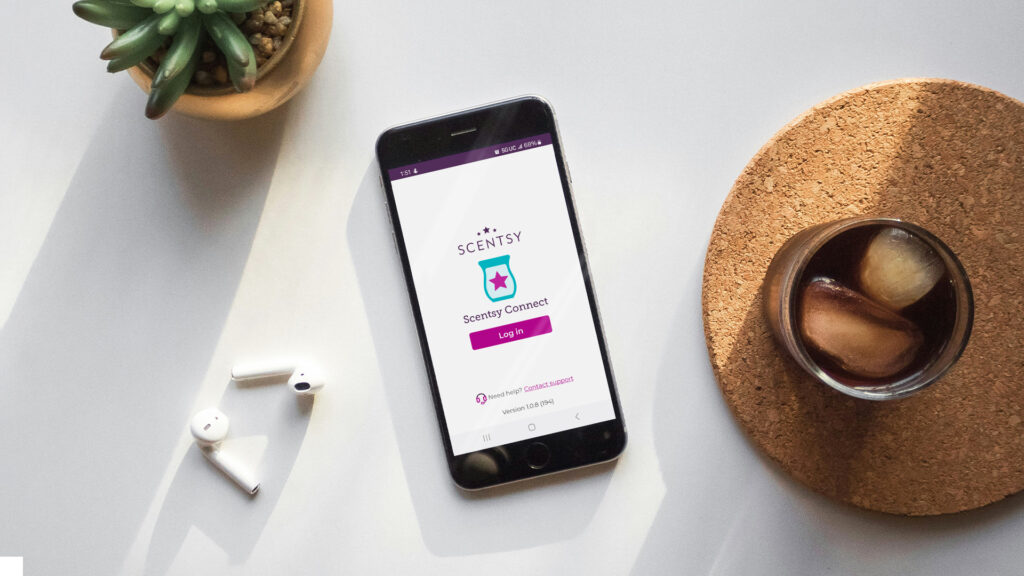
- Search for the official Hyperwallet app (which powers the Scentsy Pay Portal) in the Apple App Store or Google Play Store.
- Download and install the application on your smartphone or tablet.
- Log in using the credentials you created during your initial Workstation setup.
- Enable biometric login (Face ID or fingerprint recognition) if your device supports it for faster, secure access in the future.
Key Features of the Mobile Experience
Video: Activating your Scentsy Pay Portal

Once you are logged into the portal, several useful features help you manage your direct sales income efficiently:
- Real-Time Balance Tracking: See exactly when commissions hit your account, usually on the 10th of the month following the sales period.
- Multiple Transfer Options: Move your funds directly to a personal checking or savings account, transfer to a PayPal account, or load a branded Scentsy prepaid Visa card.
- Transaction History: Review past payouts, monthly commission statements, and transfer fees to keep accurate records for tax purposes.
- Currency and Profile Management: Update your personal information, address changes, or banking details securely within the application.
Troubleshooting Common Login and App Issues
Technology can occasionally be frustrating. If you experience trouble accessing your funds, try these proven solutions for common Scentsy pay portal app issues:
Password Resets
If you forget your password, do not try to guess it repeatedly, as security protocols will lock your account. Use the 'Forgot Password' link on the login screen to receive a secure reset link via your registered email address.
Two-Factor Authentication (2FA) Delays
The portal often requires identity verification via SMS text message or email. If you are not receiving your verification code:
- Check your device's spam or junk folder if waiting for an email.
- Ensure your mobile carrier is not blocking automated short-code messages.
- Verify that your phone number has not changed since your initial setup.
App Freezing or Crashing
If the app unexpectedly closes or fails to load your balance, try clearing your mobile app cache, checking for available updates in your app store, or completely uninstalling and reinstalling the application.
Best Practices for Managing Your Consultant Finances
Using digital payout tools effectively can save you time and help you treat your Scentsy business like a professional enterprise. Consider these tips:
- Separate Business and Personal Funds: Dedicate a specific bank account for your Scentsy earnings and business expenses to make tax season significantly easier.
- Keep Your Profile Updated: If you switch banks or open a new account, update your transfer details well before commission day to avoid delayed deposits.
- Monitor Transfer Fees: Be aware of any potential fees associated with instant transfers versus standard ACH bank transfers, and choose the option that best fits your budget.
By mastering the Scentsy pay portal app, you take full control of your independent business earnings, ensuring that your hard-earned commissions are always accessible right from your smartphone.