Schoology LAUSD: Complete Student & Parent Guide
Navigating the digital landscape of the Los Angeles Unified School District can feel overwhelming, but mastering the Schoology LAUSD platform is essential for academic success. Whether you are a student trying to keep track of upcoming homework or a parent wanting to monitor your child's daily progress, understanding this powerful learning management system makes all the difference. This guide covers everything you need to know about logging in, troubleshooting common issues, and utilizing the platform effectively.
What is Schoology LAUSD?
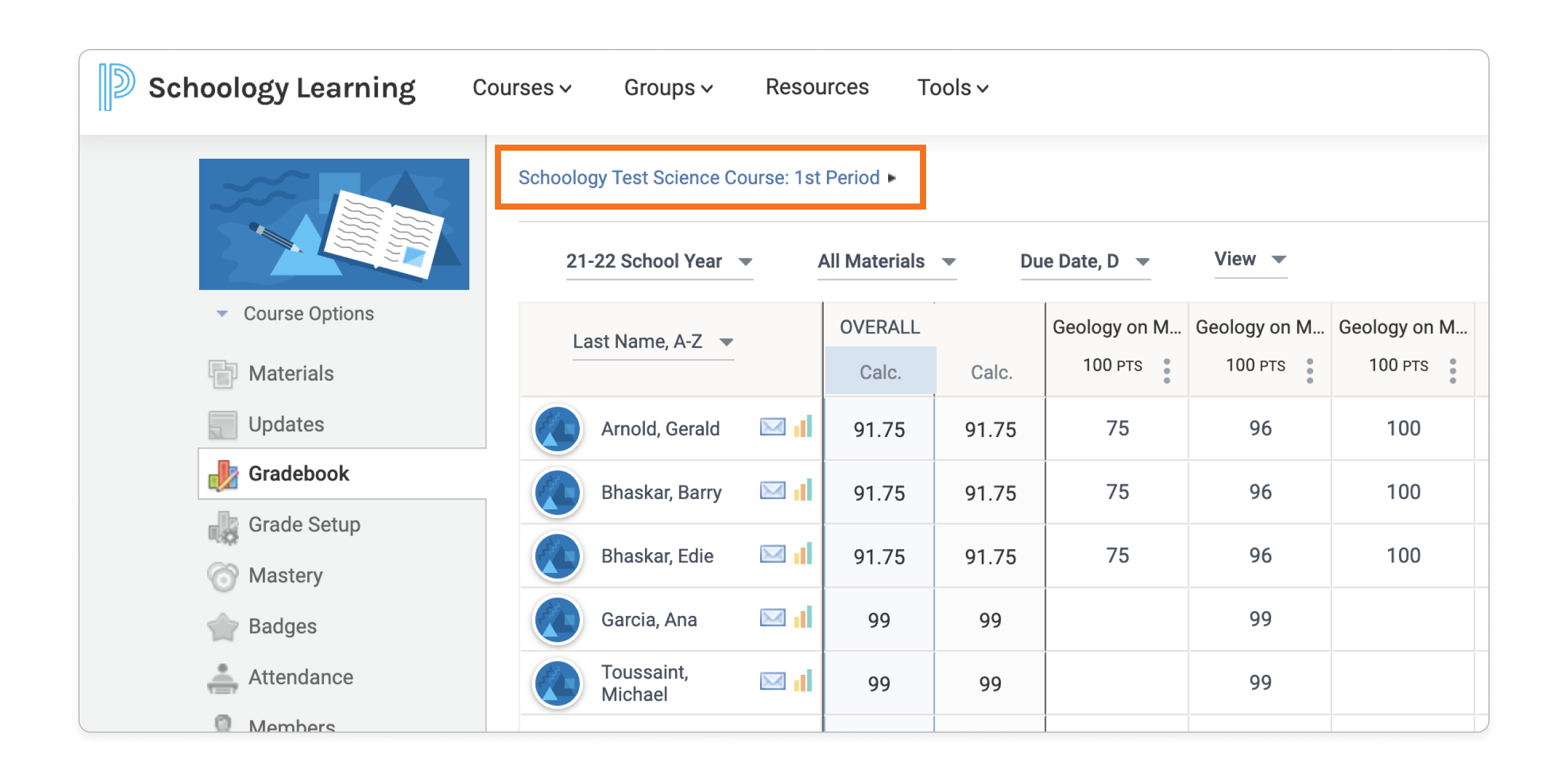
Schoology is the official learning management system (LMS) utilized by LAUSD to bridge the gap between traditional classrooms and digital education. Teachers use the platform to post lesson materials, host class discussions, distribute digital assignments, and grade student work. For families within the district, Schoology serves as a centralized hub where education happens both inside and outside of school walls.
Unlike older online grading systems, Schoology is interactive. Students can collaborate on group projects, message their teachers directly, and view real-time feedback on their submissions. Parents gain an unprecedented level of visibility into their children's day-to-day academic lives, helping everyone stay aligned and proactive about academic goals.
How to Access the Schoology LAUSD Portal
Getting started on the platform requires the right credentials depending on whether you are a student or a parent/guardian. Follow these steps to ensure a smooth login process.
Student Login Steps
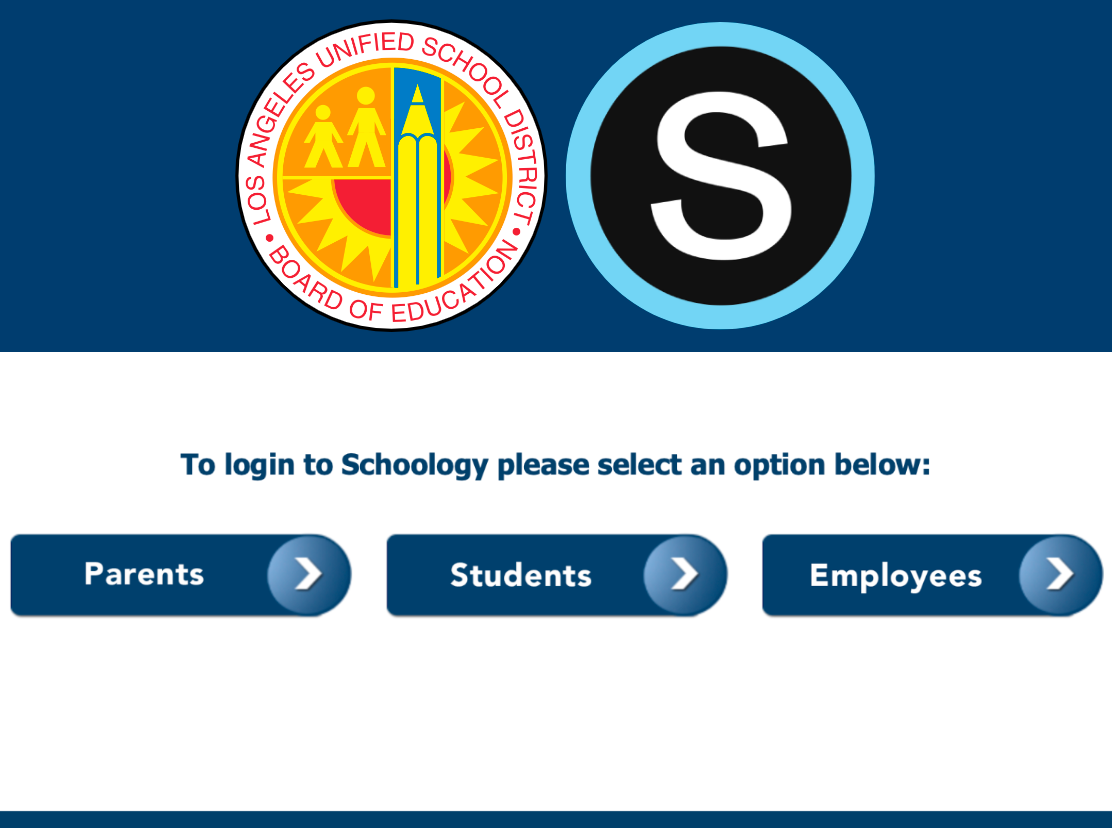
- Open your web browser and navigate to the official LAUSD Single Sign-On (SSO) page at sso.lausd.net.
- Click on the button labeled Student.
- Enter your LAUSD email address (typically ending in @lausd.net) and your student password.
- Once logged into the SSO dashboard, locate and click on the Schoology tile to launch your portal.
Parent/Guardian Login Steps
Parents do not use the student login portal. Instead, you must have an active LAUSD Parent Portal account linked to your student's unique District ID.
- Visit the LAUSD Parent Portal website to create your account or log in using your registered email.
- If you haven't linked your child yet, you will need an LAUSD Parent PIN provided by your child's school.
- Once inside the Parent Portal, click the link for Schoology to view your child's courses, assignments, and grades. Alternatively, you can go directly to lms.lausd.net and log in using your parent credentials.
Navigating Your Dashboard
Once you successfully log into Schoology LAUSD, you will land on your main home dashboard. Here is a breakdown of the key areas you should know:
- Recent Activity Feed: Displays updates, announcements, and posts from your teachers and classes.
- Courses Tab: Click here to view a complete list of all enrolled classes for the current semester or school year. Each course contains its own folder structure with materials, assignments, and quizzes.
- Calendar: A color-coded schedule that automatically populates with due dates for assignments, tests, and upcoming school events across all your classes.
- Messages: An internal inbox allowing students and parents to communicate securely with teachers without needing personal email addresses.
Tips for Students to Succeed on Schoology
Keeping up with digital coursework requires discipline and organization. Use these practical strategies to stay on top of your classes:
- Check Daily: Log in every morning and evening to review the calendar and check for new announcements or grade updates.
- Turn on Notifications: Adjust your account settings to receive email or text notifications when teachers post new assignments or change due dates.
- Submit Early: Do not wait until 11:59 PM to submit major projects. Technical glitches can happen, and submitting work ahead of time prevents last-minute stress.
- Organize Digital Files: Keep your homework files neatly labeled on your computer before uploading them to Schoology to avoid submitting the wrong document.
Troubleshooting Common Login Issues
Technical roadblocks can occasionally disrupt your workflow. Here is how to fix the most frequent issues encountered on the platform:
Forgotten Passwords
Students who forget their password can reset it through the LAUSD Self-Service Password Reset tool or by contacting their school's media coordinator or tech lead. Parents should use the password recovery options available on the main LAUSD Parent Portal login page.
Browser Compatibility
If pages fail to load properly or buttons are missing, try clearing your browser's cache and cookies, or switch to an updated version of Google Chrome or Mozilla Firefox. Avoid using outdated or unsupported web browsers.
Mobile Access
Did you know Schoology has an official mobile app? Available for both iOS and Android devices, the Schoology app allows students and parents to check grades and receive notifications on the go. Simply download the app, search for "Los Angeles Unified School District" in the school district selection field, and log in using your standard SSO credentials.
Conclusion
The Schoology LAUSD platform is a powerful tool designed to keep the entire district connected, informed, and organized. By taking the time to learn its features, setting up regular check-ins, and utilizing the built-in calendar and messaging tools, students and parents can navigate the school year with confidence. Stay proactive, keep your login credentials secure, and make the most of your digital classroom experience.