Sony HT-A5000 Firmware Update: Step-by-Step Guide
Keeping your soundbar up to date ensures you get the best audio performance, seamless compatibility with your television, and the latest audio processing enhancements. If you are experiencing audio dropouts, eARC handshake problems, or connection issues with optional rear speakers, running a sony ht-a5000 firmware update is often the fastest and most reliable fix.
Sony routinely deploys over-the-air patches to refine HDMI 2.1 passthrough (such as 4K 120Hz, VRR, and ALLM for gaming consoles), improve 360 Spatial Sound Mapping, and patch network bugs. This guide covers how to check your current version, two proven methods to update your soundbar, and how to troubleshoot common update failures.
Why Firmware Updates Matter for the HT-A5000
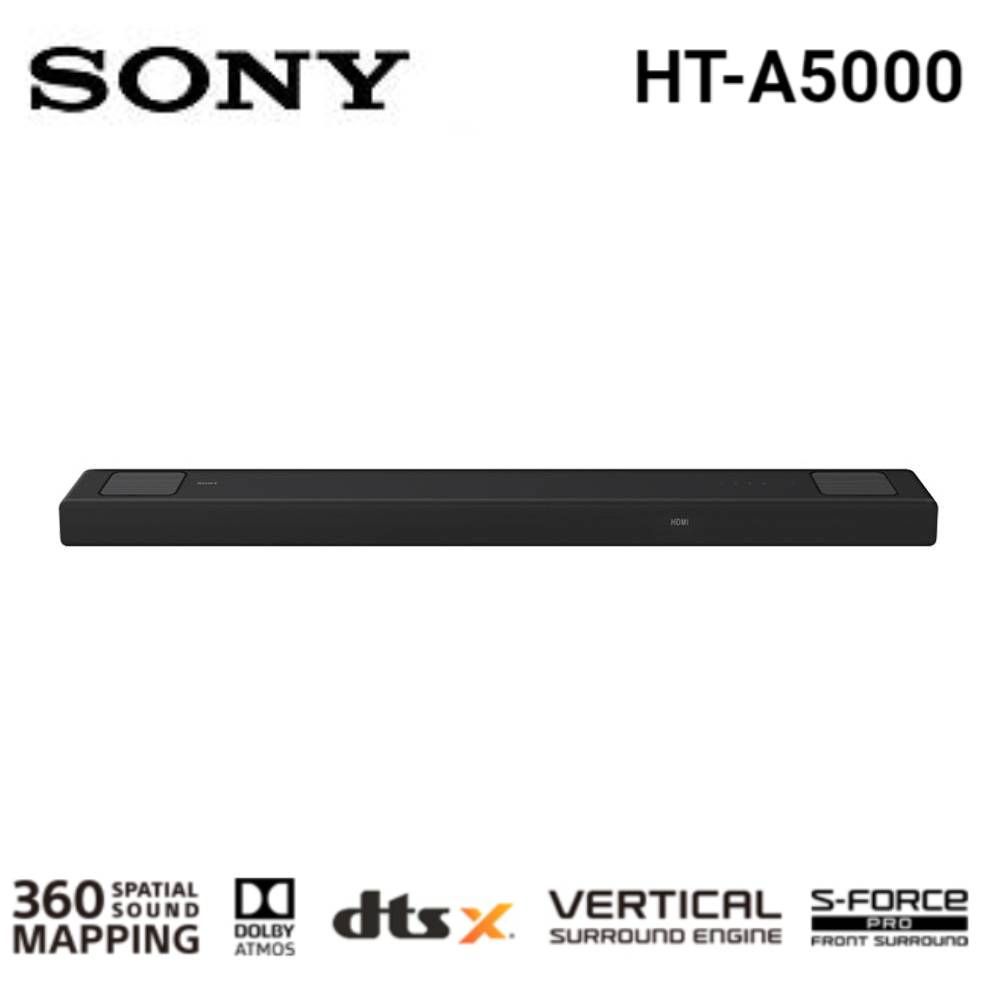
The Sony HT-A5000 is an advanced 5.1.2-channel Dolby Atmos and DTS:X soundbar packed with software-driven acoustic technologies. Because it relies heavily on software decoding and HDMI communication, firmware updates provide vital improvements:
- HDMI eARC Handshake Stability: Resolves intermittent muting, delay, or failure to recognize connected TVs (such as Sony BRAVIA, LG OLED, or Samsung displays).
- Gaming Enhancements: Improves pass-through stability for 4K at 120Hz and Variable Refresh Rate (VRR) when routing a PlayStation 5 or Xbox Series X directly through the soundbar.
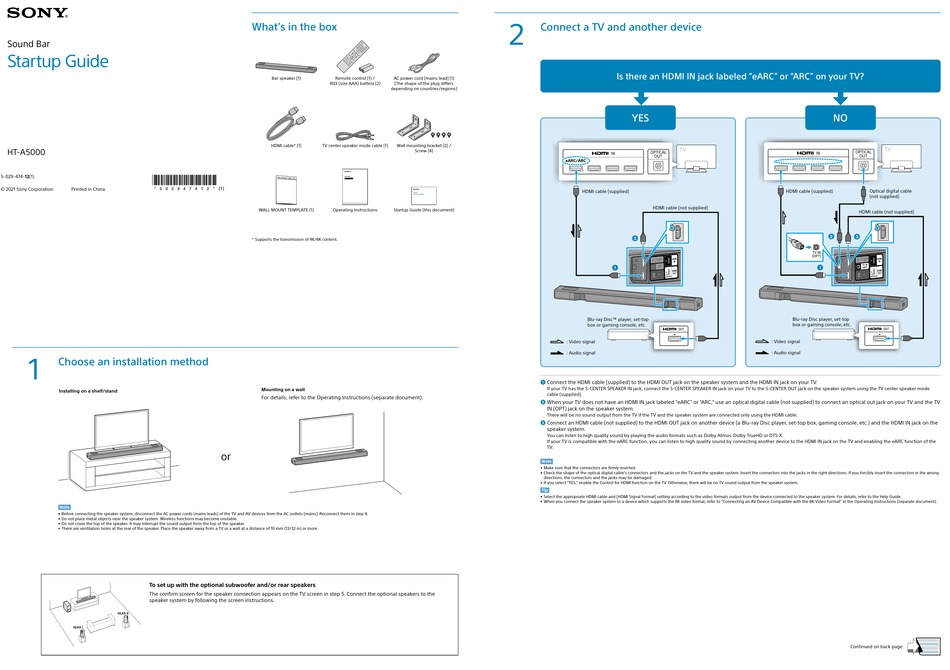
- Wireless Peripheral Sync: Stabilizes connectivity to the optional SA-SW3 / SA-SW5 subwoofers and SA-RS3S / SA-RS5 rear speakers, reducing random disconnects.
- Streaming Protocol Updates: Keeps Apple AirPlay 2, Spotify Connect, and Google Chromecast running without playback buffering.
Step 1: Check Your Current Firmware Version
Before initiating an update, verify which software version your unit is running. You may already be on the latest release if auto-update is enabled.
- Turn on your television and switch the input to the HDMI port connected to your HT-A5000.
- Press the HOME button on your Sony soundbar remote control to bring up the on-screen home menu.
- Select Setup, then navigate to Advanced Settings.
- Scroll down and select System Settings.
- Choose System Information.
- Note the series of numbers listed under Software Version. Compare this version against the latest build listed on the official Sony Support page for your region.
Methods to Perform a Sony HT-A5000 Firmware Update
Sony provides two ways to upgrade the HT-A5000: directly over your local home network (recommended) or offline using a USB flash drive.
Method 1: Updating Over the Internet (Network Update)
The simplest method is the network update. Your soundbar must be connected to the internet via Wi-Fi or an Ethernet cable.
- Turn on the soundbar and your TV. Ensure the soundbar displays its home menu on the TV screen.
- On the remote, press HOME.
- Select Setup > Advanced Settings.
- Select Software Update.
- Choose Network Update.
- The soundbar will ping Sony's servers to search for a newer build. If a patch is found, select Start to confirm.
- The front panel display on the soundbar will show UPDATE, followed by a completion percentage (e.g., 0% to 100%).
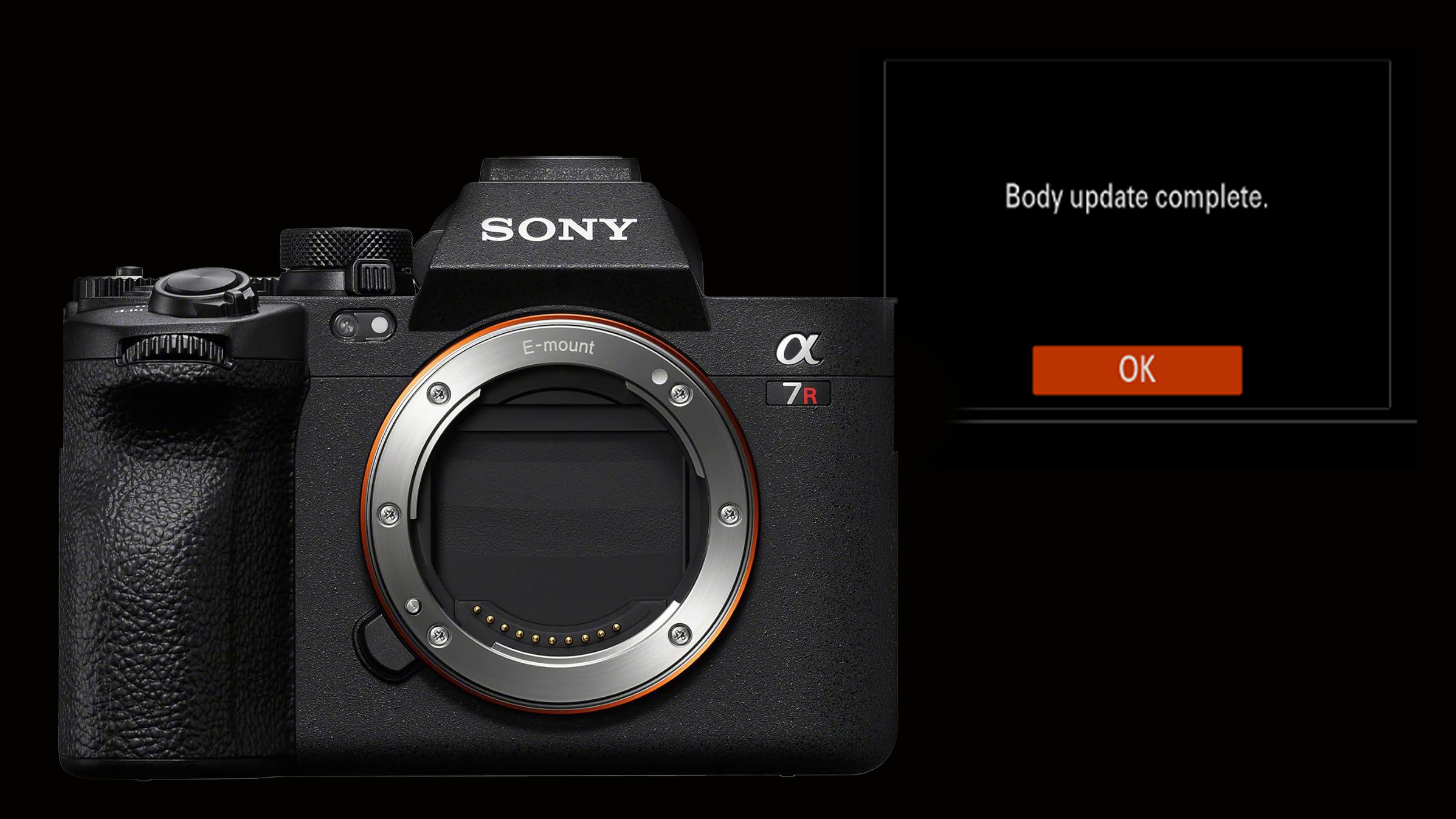
- Once complete, the unit will display COMPLETE and reboot automatically.
Caution: Never turn off the TV, unplug the power cable, or disconnect the network during the update process. Doing so can corrupt the internal memory and brick the device.
Method 2: Updating via USB Flash Drive
Video: Sony | How To Update Firmware On Your HT-A7000, HT-A5000 Or HT-A9 Home Theater Systems
If your HT-A5000 is not connected to the internet, or if a network update repeatedly fails midway through, you can update manually using a USB thumb drive.
Preparing the USB Drive:
- Use a standard USB 2.0 or 3.0 flash drive with a capacity between 2 GB and 32 GB.
- Format the drive to FAT32 or exFAT on a PC or Mac. NTFS is not consistently recognized.
- Visit the official Sony Support website for your region and search for HT-A5000.
- Download the latest firmware archive (usually packaged as a
.zipfile). - Extract the zip archive. You will see an update folder containing a file ending in
.binor a Sony package structure (e.g.,A3000_A5000_Update). - Copy the extracted folder or files directly into the root directory of the USB drive (not inside any extra subfolders).
Applying the USB Update:
- Turn on the soundbar and your TV.
- Plug the USB flash drive into the USB port located on the rear or side panel of the HT-A5000.
- Press the HOME button on the remote to display the home menu on your TV.
- Go to Setup > Advanced Settings > Software Update.
- Select USB Update.
- The soundbar will inspect the USB drive. When prompted, select Start.
- The display on the soundbar will cycle through the update stages. Do not remove the USB drive until the soundbar turns off and restarts on its own.
Troubleshooting Common HT-A5000 Update Errors
While updates are typically seamless, occasional errors can occur. Here is how to resolve the most common issues:
The Screen Displays "ERROR" or "UPDATE ERROR"
This typically indicates that the download was interrupted or that the system encountered an unexpected software flag.
- Power Cycle: Unplug the AC power cord from the wall outlet. Wait 60 seconds, reconnect the cord, and power the soundbar back on. Attempt the update again.
- Switch to Wired Connection: If running a network update over Wi-Fi, run an Ethernet cable temporarily from your router to the soundbar to rule out wireless interference.
The USB Drive Is Not Detected
If the soundbar states that no valid update file was found:
- Ensure the drive is formatted as FAT32 (or exFAT). Soundbars cannot read drives formatted with macOS Extended (Journaled) or proprietary Linux partitions.
- Verify file placement. The update files must reside directly in the top directory of the drive, not nested inside multiple folders created during extraction.
- Try a different, smaller USB flash drive (16 GB drives often yield the highest compatibility).
The Soundbar Is Stuck on "UPDATE"
Firmware installations can take anywhere from 10 to 30 minutes depending on file size and internal verification routines. Allow the soundbar at least 45 minutes to complete the process. If it remains completely frozen past that point, disconnect the power cable, reconnect it, and inspect whether the unit boots to the normal input. If it boots successfully, verify the version in System Information to see if the patch applied.
Post-Update Step: Re-Run Sound Field Optimization
After any major firmware update, Sony occasionally resets or refines acoustic calibrations. To get the best surround and Dolby Atmos performance:
- Press HOME on the remote.
- Go to Setup > Advanced Settings > Speaker Settings.
- Select Sound Field Optimization and press Start.
- Remain quiet in the room while the soundbar emits testing tones to measure the acoustic reflections from your walls and ceiling.
Taking these extra few minutes ensures your Sony HT-A5000 takes full advantage of the internal algorithms included in the newest update.