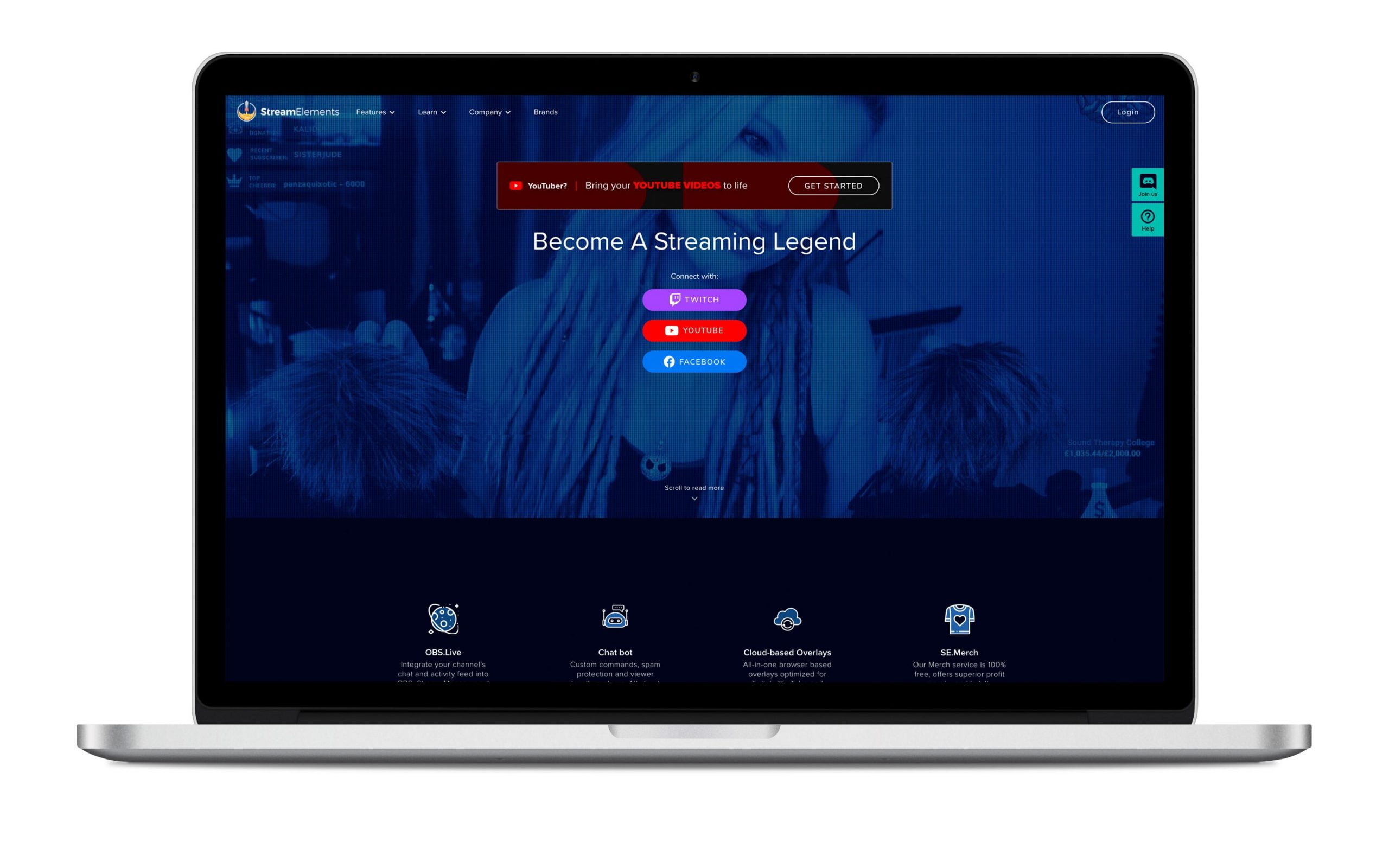
StreamElements Rename Command: Complete Guide
When managing an active Twitch or YouTube stream, keeping your chatbot organized is essential. Whether you are rebranding your channel, refining your chat rewards, or correcting a typo, you will eventually find yourself needing a streamelements rename command to modify existing triggers. However, depending on whether you are working in your live chat or inside the StreamElements dashboard, the process works slightly differently than most creators expect.
StreamElements handles custom triggers and default bot modules through separate systems. This guide breaks down exactly how to rename custom commands, adjust default commands, set up aliases, and manage changes directly through chat.
Can You Directly Rename a Command in StreamElements?
The short answer is yes, but the method depends on where you are trying to make the change.
- Through the Web Dashboard: You can directly edit the trigger name of any custom command in a few clicks.
- Through Live Chat: StreamElements does not feature a dedicated
!command renamechat syntax. Instead, you must either create an alias or remove the old trigger and create a new one. - Default Commands: System commands (such as
!points,!leaderboard, or!songrequest) cannot have their core system names deleted, but you can assign aliases so chatters can trigger them using your channel’s custom terminology.
How to Rename Custom Commands in the Dashboard
The easiest and cleanest way to change a command’s trigger word is through the StreamElements web dashboard. This method preserves your command's user levels, cooldowns, responses, and advanced variable logic without forcing you to retype everything.
- Navigate to the StreamElements Dashboard and log in with your streaming account.
- In the left sidebar, expand the Chatbot menu and click on Chat Commands.
- Select the Custom Commands tab at the top of the page.
- Locate the command you wish to change and click the Edit button (represented by a pencil icon) on the right side.
- In the Command name field, replace the existing trigger with your new desired trigger (for example, changing
!socialsto!links). - Click Save at the bottom of the modal window.
The change takes effect immediately. Your bot will instantly stop responding to the old command name and begin listening for the new one.
The StreamElements Rename Command Process via Chat
If you are live mid-stream and need to update a command without opening a browser tab, you cannot use a single "rename" instruction. StreamElements chat administration uses distinct commands for adding, editing, and deleting.
Method 1: Replace the Command (Add and Delete)
To fully swap an old trigger for a new one via chat, you will add the new command first and then delete the old one. Broadcasters and designated bot moderators can run these commands:
- Add the new trigger:
!command add !newcommand Your response message here. - Delete the obsolete trigger:
!command delete !oldcommand
This method works best for simple text commands. If your command uses complex variables (such as ${user}, ${count}, or custom API endpoints), copying the response text accurately inside chat can be prone to typos, making the dashboard method safer.
Method 2: Use Aliases Instead of Renaming
If your community is already accustomed to typing the original command, renaming it outright can lead to confusion. Instead of deleting the old trigger, you can configure an alias. An alias allows multiple words to trigger the exact same response.
While StreamElements allows you to assign aliases inside the dashboard under the command's Advanced Settings, you can also assign them in chat if your custom command setup uses modular redirects:
!command add !newtrigger ${command !oldtrigger}
This retains the original command while allowing viewers who use the new phrasing to receive the identical reply.

How to "Rename" Default StreamElements Commands
Default commands are hardcoded tools provided by StreamElements, such as loyalty point lookups, mini-games, and song requests. You cannot delete default commands, but you can alter how your community interacts with them.
Using Command Aliases for Channel Points and Currency
If your stream currency is called "Gold" or "Beans," having viewers type !points breaks immersion. To rebrand default commands:
- Go to Chatbot > Chat Commands > Default Commands in the dashboard.
- Find the module you want to rebrand (for example, the Loyalty module).
- Click the command you want to customize (such as
!points). - In the command settings, look for the Aliases field.
- Enter your preferred command name (for example,
!goldor!beans) and press Enter. - Click Save.
Once saved, viewers can type either !points or your custom alias to check their balance. If you want to prevent viewers from using the original word entirely, you can disable the default command toggle and create a custom command that queries the loyalty balance variable directly.
Troubleshooting Command Changes
If you renamed a command but the bot is not responding as expected, check the following common issues:
1. Cached Data or Chat Delay
In rare cases, bot servers experience a slight synchronization delay. If a newly renamed command fails to respond immediately, wait 30 to 60 seconds or disconnect and reconnect the bot via the Bot Settings toggle on your main dashboard.
2. Exclamation Mark Duplication
When typing command names into the StreamElements dashboard, do not include the exclamation mark (!) in the command name field unless your bot prefix is configured differently. StreamElements automatically appends your bot prefix. Entering !socials into the box might cause the bot to listen only for !!socials.
3. Conflicting Triggers
If the new command name matches an existing default command or another custom command alias, StreamElements will prioritize one or fail to trigger reliably. Always check both the Custom Commands and Default Commands tabs to verify that your new trigger is unique.
4. User Level Restrictions
When you recreate a command through chat using !command add, its permission level defaults to everyone. If the command was originally intended for moderators or VIPs only, make sure to adjust its user level in the dashboard or via chat arguments right after creating it.
Summary
While there is no single chat-based !command rename string, updating your channel triggers is simple. For custom commands, use the web dashboard to change the name field directly without losing your settings. For default commands, use aliases to adapt the bot to your channel's unique theme while keeping its underlying functionality intact.