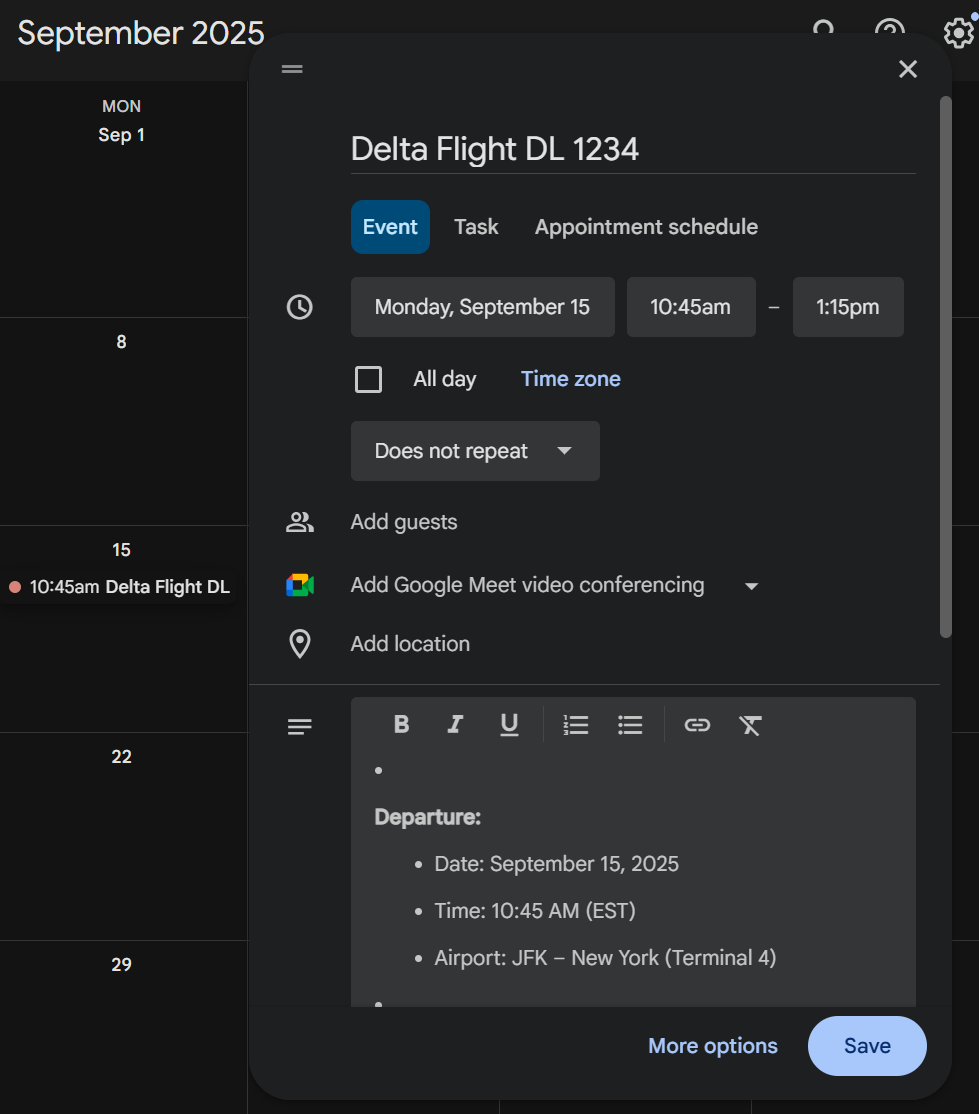
Streamline Travel with Delta and Google Calendar
Modern air travel involves dozens of moving pieces, from boarding times and terminal changes to layovers and ground transportation. When you streamline travel with Delta and Google Calendar, you eliminate the frantic search for confirmation numbers in your inbox and centralize your entire itinerary in one dynamic, automated dashboard.

Delta Air Lines is one of the world's most punctual and reliable carriers, but unexpected disruptions, schedule adjustments, and time-zone conversions can still disorient even the most seasoned flyers. Connecting your Delta itineraries directly to Google Calendar provides an active, real-time timetable that updates your phone, smartwatch, and desktop automatically.
How Delta and Google Calendar Work Together
For most travelers, the integration between Delta and Google Calendar requires minimal effort thanks to Google's automated parsing algorithms. When you book a flight through Delta.com or the Fly Delta mobile app, Delta sends a booking confirmation containing standard microdata (schema markup) directly to your email.
Google Calendar scans incoming emails in Gmail for structured reservation data. Once detected, the algorithm automatically extracts your flight number, departure and arrival airports, terminal information, confirmation code, and flight times, placing an event directly on your calendar.
The Native Gmail Integration (Events from Gmail)
If your Delta SkyMiles account is tied to a standard Gmail address or a Google Workspace account with smart features enabled, this process is virtually hands-free:
- Automatic Event Creation: Google Calendar creates an event block for each leg of your journey.
- Dynamic Time-Zone Shifts: The calendar entry calculates the local time at your departure city and automatically displays the local arrival time at your destination.
- Integrated Navigation: Tapping the event prompts Google Maps to calculate drive times to Hartsfield-Jackson (ATL), JFK, Minneapolis-Saint Paul (MSP), or your local Delta hub.
How to Streamline Travel with Delta and Google Calendar
While the background automation works well under standard conditions, relying solely on passive sync can occasionally lead to blind spots. Taking a few proactive configuration steps ensures your Delta flights sync flawlessly every time.
1. Enable Smart Features in Gmail and Calendar
If your flights are not appearing automatically, your Google account's privacy filters may be blocking automated sync. To enable it:
- Open Google Calendar on your desktop.
- Click the Settings (gear icon) in the top-right corner.
- In the left sidebar, navigate to Events from Gmail.
- Ensure the checkbox for "Automatically add events from Gmail to my calendar" is checked.
- Open Gmail Settings, go to the General tab, and verify that "Smart features and personalization" is turned on.
2. Exporting Itineraries Manually from Delta.com
If you use an alternate email address for your Delta profile (such as a corporate Outlook address) but manage your personal daily schedule on Google Calendar, you can manually export your itinerary using universal calendar files (.ics):
- Log in to your SkyMiles Account on Delta.com.
- Navigate to My Trips and select your upcoming reservation.
- Under trip details, locate the "Add to Calendar" or "Export Itinerary" link.
- Download the
.icsfile and open Google Calendar on your browser. - Go to Settings > Import & Export, select the downloaded file, and assign it to your primary calendar.
3. Syncing via the Fly Delta Mobile App
The Fly Delta mobile app allows travelers to send reservation details directly to their device's default calendar. If you use an Android device, this automatically populates your primary Google Calendar account. For iOS users, saving to the device calendar will reflect in Google Calendar if you have your Google account linked inside the Apple Calendar app.
Key Productivity Advantages for Frequent Flyers

Treating your calendar as a central command station unlocks several strategic benefits that passive email folders cannot match.
Automatic Time-Zone Calculations
Cross-country and transoceanic flights create mental fatigue, particularly when calculating arrival windows, meeting availabilities, and check-in deadlines. Google Calendar interprets the universal UTC timestamp of your Delta booking and visually anchors each segment to the local time of the respective city. You instantly see when you will be in the air without manually adjusting your phone's clock.
Frictionless Sharing with Colleagues and Family
Rather than forwarding confirmation emails containing sensitive payment details or SkyMiles credentials, a shared Google Calendar entry gives your emergency contacts or executive assistants immediate visibility. You can set individual calendar permissions so colleagues know you are "busy" in flight while your family sees exact flight numbers and arrival terminals.
Proactive Commute and Buffer Warnings
When an event has an airport address associated with it, the Google Calendar mobile application can push notifications based on real-time traffic conditions. If traffic to the airport surges, Google informs you to leave earlier than anticipated to clear TSA screening and reach your Delta Sky Club or departure gate comfortably.
Troubleshooting Common Sync Problems
Even with advanced integrations, travelers occasionally encounter inconsistencies. Here is how to resolve the most common issues:
Flight Changes Do Not Update Automatically
If Delta rebooks you due to weather, mechanical delays, or a schedule change months in advance, Gmail may receive the updated receipt, but Calendar might fail to overwrite the original block. Always double-check your calendar against the Fly Delta App 24 hours prior to departure. If an old flight persists, delete the entry manually and re-import the updated confirmation email.
Multi-City or Group Bookings Splitting Incorrectly
Complex itineraries involving partner carriers (such as Air France, KLM, or Virgin Atlantic booked via Delta) can sometimes split into disconnected calendar entries. If this occurs, edit the event manually to combine the legs or add notes with your partner airline booking references (PNR), which often differ from your main Delta confirmation code.
Pro-Tips to Optimize Your Travel Workflow
- Set a 24-Hour Check-In Reminder: Create a repeating notification 24 hours before your flight departure. Checking in the exact minute the Delta window opens ensures optimal boarding queue positioning or standby priority.
- Attach Digital Boarding Passes: Download your Delta boarding pass PDF or take a screenshot and attach it directly to the Google Calendar event. If cell service drops inside the terminal, you can still pull up your document straight from your schedule.
- Color-Code Your Itineraries: Assign a distinct color (such as bold blue or graphite) to all flight events. This visually distinguishes travel days from standard work meetings and alerts your team not to schedule high-stakes video calls while you are in transit.
Final Thoughts
Business travel runs smoother when technology handles the logistics. By leveraging Google Calendar's automated parsing alongside Delta's real-time flight infrastructure, you spend less time sifting through receipts and more time focused on your journey.