UF Citrix Login: Access UFApps & UF Health
Whether you are a student running specialized modeling software, a faculty researcher processing data, or a healthcare professional accessing clinical records, completing your UF Citrix login is the gateway to the University of Florida’s virtual computing ecosystem. Through virtualization, UF delivers high-performance applications and secure medical environments directly to your personal device without requiring high-end hardware.
Because the University of Florida operates distinct environments for academic use and clinical operations, users often run into confusion regarding where and how to sign in. This guide walks you through accessing both UFApps and UF Health Citrix environments, configuring the Citrix Workspace client, and resolving the most common connection issues.
Understanding the Environments: UFApps vs. UF Health Citrix
Before attempting to log in, you must determine which Citrix portal serves your specific needs. UF maintains two primary, segregated Citrix systems to comply with licensing and regulatory mandates such as HIPAA:
- UFApps (Academic & Research): Designed for main-campus students, staff, and faculty. It provides access to over 100 software packages, including MATLAB, SPSS, ArcGIS, NVivo, and Microsoft Office, without local installation costs.
- UF Health / Shands Citrix (Clinical & Healthcare): Dedicated to UF Health staff, medical students, residents, and hospital personnel. It provides secure entry to electronic health record (EHR) systems like Epic, clinical portals, and hospital-restricted intranets.
Step-by-Step UF Citrix Login Guide
Depending on which system you need, follow the corresponding procedure below to authenticate and launch your session.
1. Logging into UFApps (Students and Campus Faculty)
- Open an updated web browser (Chrome, Firefox, Edge, or Safari) and navigate to login.ufl.edu or directly to ufapps.ufl.edu.
- Click the Login to UFApps button.
- Enter your GatorLink username and password on the UF Central Authentication Service (CAS) page.
- Approve the Duo Multi-Factor Authentication (MFA) prompt sent to your registered mobile device.
- Once authenticated, the Citrix StoreFront interface will display your favorited applications. Click any app or virtual desktop icon to launch it.
2. Logging into UF Health / Shands Citrix (Clinical Staff)
- Navigate to the designated UF Health portal (typically mycitrix.shands.ufl.edu or workspace.ufhealth.org).
- Enter your UF Health / Shands ID (or your bridged GatorLink credential if provisioned) and your password.
- Complete the required multi-factor authentication step via your configured authenticator or Duo instance.
- From the clinical application dashboard, select your required tool, such as Epic Hyperspace or departmental tools.
Web Browser vs. Citrix Workspace App
When you log in, Citrix gives you two ways to run software: the lightweight HTML5 browser client or the dedicated Citrix Workspace App installed on your local computer.
The Browser Client (HTML5)
The browser version requires no software installation. It is ideal for quick tasks, printing simple documents, or working on borrowed computers (such as library workstations). However, it runs inside a browser tab and exhibits limitations with multi-monitor support, audio redirection, and seamless local file access.
The Citrix Workspace App (Recommended)
For regular coursework, heavy data analysis, or clinical shifts, downloading the full Citrix Workspace App is strongly recommended. It integrates directly with your operating system, unlocking full performance features:
- Full multi-monitor display capabilities.
- Bidirectional copy/paste between local and virtual desktops.
- Seamless read and write access to local hard drives and USB peripherals.
- Optimized network utilization for smoother rendering.
How to Configure Citrix Workspace on Your Computer

To establish a direct connection through the standalone app rather than opening a browser every time, follow these configuration steps:
- Download the latest version of Citrix Workspace App from the official Citrix website or the UFIT software downloads page.
- Run the installer. If prompted during installation to enable "App Protection" or "Single Sign-On," accept the defaults recommended by UFIT.
- Once installed, launch the application. When prompted to Add Account or enter a server URL, enter: ufapps.ufl.edu (for academic apps) or the specific StoreFront URL provided by UF Health IT.
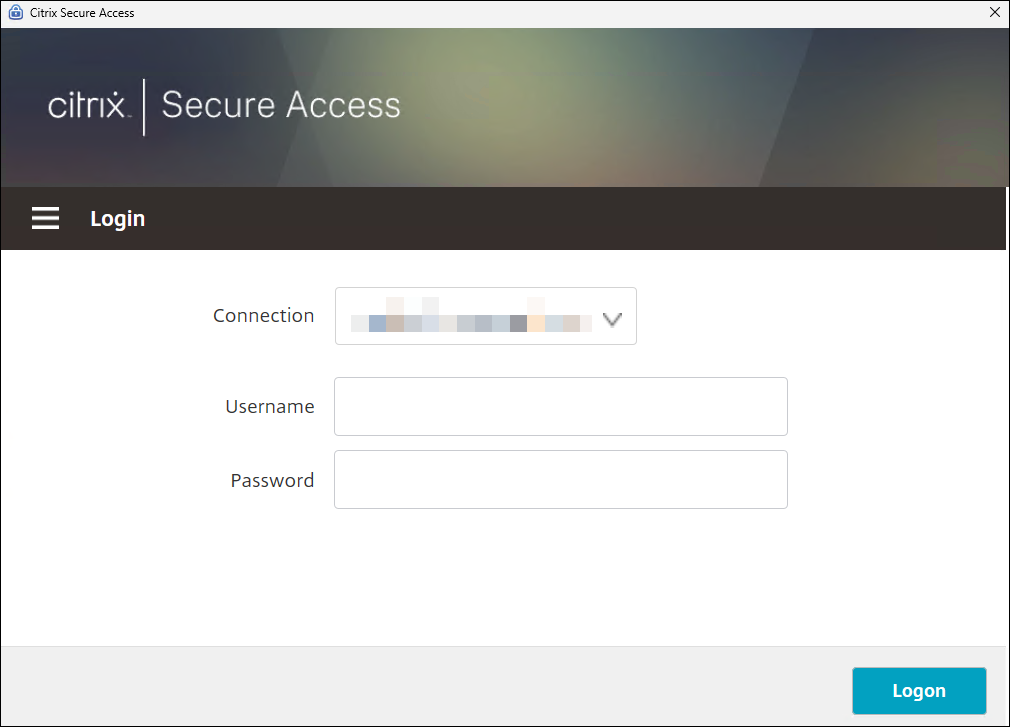
- Enter your GatorLink or Shands credentials when the sign-in window appears, followed by Duo verification.
- Your virtual applications will now appear directly inside the Workspace app desktop folder or launcher.
Managing Files in UF Citrix
Because Citrix sessions run on remote servers, saving your work requires attention to file paths. Closing an application without saving to a persistent storage location can result in data loss.
- UF OneDrive: The preferred storage option for UFApps. You can link your university Microsoft 365 account directly inside the virtual session to automatically sync work to cloud storage.
- Local Drives: If using the Workspace App, allow "Read & Write Access" when prompted. Your local hard drives will appear under "This PC" inside the virtual environment (often labeled as C$ on Client).
- Network Drives (M: or K: Drives): Faculty and healthcare employees can access departmental shared drives mapped automatically upon login.
Troubleshooting Common UF Citrix Login Issues
If you encounter roadblocks while attempting to access your environment, these proven solutions address the most common technical hurdles.
1. Duo Authentication Timeouts
If the login screen spins indefinitely after entering your password, your Duo push notification likely expired. Ensure your phone has internet connectivity, open the Duo Mobile app manually to check for pending requests, or request a passcode instead of a push notification.
2. "Cannot Connect to Server" or SSL Errors
This error typically points to outdated security certificates or an obsolete version of Citrix Receiver. Uninstall any legacy "Citrix Receiver" packages, reboot your computer, and install the current "Citrix Workspace App." Also check that your computer’s system clock is set to the correct local time, as clock skew breaks SSL validation.
3. Browser Downloads an ".ica" File Instead of Opening
If clicking an app downloads a file named launch.ica rather than starting the session, your operating system does not know which application should handle the file. Right-click the downloaded .ica file, choose Open with, and associate it permanently with Citrix Connection Manager (found within the Citrix installation directory).
4. Session Freezing or Black Screen
If an existing session disconnects unexpectedly, the server may keep your profile in a detached state. Return to the web portal, click the drop-down menu near your name in the top right corner, select Log Off, and wait two minutes before logging in again. This forces the server to terminate orphaned processes.
Getting Direct Support
If you have verified your password, installed the latest Workspace client, and still cannot complete your login, reach out to the appropriate help desk:
- UF Computing Help Desk (Academic/GatorLink): Call (352) 392-HELP (4357) or email
helpdesk@ufl.edu. - UF Health IT Help Desk (Clinical/Shands): Call (352) 265-0526 or submit a ticket through the UF Health IT Portal.