Vizio TV No Network Detected But Connected to WiFi Fix
Understanding the Vizio TV No Network Detected But Connected to WiFi Issue
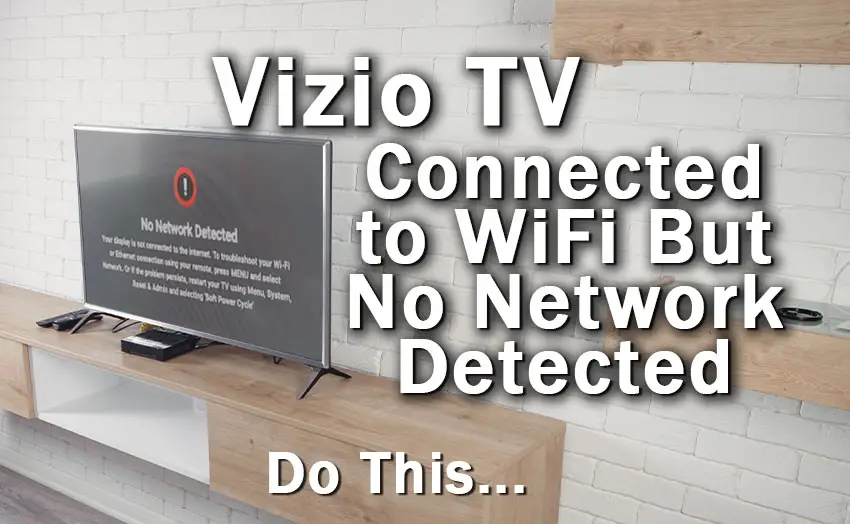
It is one of the most frustrating tech glitches you can experience: you look at your Vizio SmartCast TV settings, and it clearly shows a successful connection to your wireless router. Yet, when you try to open Netflix, YouTube, or browse the home screen recommendations, you are greeted with a frustrating error message. If your Vizio TV says no network detected but connected to wifi, you are not alone. This is a surprisingly common issue that stems from a variety of software glitches, IP conflicts, DNS timeouts, or temporary router bugs.
Fortunately, you do not need to buy a new television or call an expensive technician. In most cases, you can restore full internet access to your Vizio smart TV using a few straightforward troubleshooting methods. Let's walk through the exact steps to diagnose the root cause and get your streaming back on track.
1. Perform a Power Cycle on Your Vizio TV
Electronic devices like smart TVs have small operating systems that can experience memory leaks or background processes freezing up. A simple standby power down often isn't enough; you need to drain the residual power completely.
- Turn off your Vizio TV using either the remote control or the physical power button on the TV chassis.
- Unplug the power cord directly from the electrical wall outlet.
- Leave the television unplugged for a full 60 seconds. While you wait, press and hold the physical power button on the TV for about 10 to 15 seconds to drain any remaining charge from the internal capacitors.
- Plug the power cord back into the wall outlet.
- Power the TV back on and check if your network connection is now working properly.
2. Restart Your Modem and Wireless Router
Often, the issue has less to do with your Vizio television and more to do with your home networking equipment. Routers occasionally assign a faulty IP address to specific devices or suffer from packet loss that prevents full internet access, even if the local WiFi signal is strong.
- Unplug both your modem and your wireless router from the wall power outlets.
- Wait at least 30 to 60 seconds to allow the hardware to completely shut down.
- Plug your modem back in first and wait a minute or two for the connection lights to stabilize.
- Plug your wireless router back in and wait for the WiFi broadcast light to turn solid.
- Once your home network is fully back online, check your Vizio TV to see if the network error has cleared.
3. Forget the Network and Reconnect
Sometimes your Vizio TV gets stuck holding onto corrupted network configurations or outdated credentials. Forcing the television to completely forget your wireless network and start fresh from scratch often resolves the 'no network detected' prompt.
- Press the Menu or Gear button on your Vizio remote.
- Navigate to Network and select it.
- Highlight your current WiFi network name and choose the option to Forget Network or disconnect.
- Once disconnected, restart your Vizio TV to clear out the old cache.
- Go back to the Network settings menu, select your WiFi network from the list of available connections, and carefully re-enter your wireless password.
4. Check Date and Time Settings
Video: Vizio TV : How to Fix the Wifi If Not Connecting

It sounds strange, but an incorrect date and time setting on your Vizio smart TV can break secure HTTPS handshakes required by modern streaming apps like Netflix, Prime Video, and Disney+. If the TV's internal clock is wrong, security certificates appear invalid, resulting in a network failure.
- Go to the TV Settings menu.
- Select System, followed by Time & Date.
- Ensure that the time zone is set correctly for your geographic location.
- Switch the time setting from manual to Automatic if possible, allowing the TV to sync its clock via the internet or your broadcast signal.
5. Adjust Your Router's Wireless Settings
If basic reboots do not work, your Vizio TV might be struggling with advanced router features. Modern routers often combine the 2.4 GHz and 5 GHz bands under a single network name (SSID), or they use aggressive security protocols that older Vizio firmware struggles to process.
- Separate the Bands: If your router supports dual-band smart connect, try giving your 2.4 GHz and 5 GHz bands separate names. Vizio TVs often perform much more reliably on the 2.4 GHz band, which has better range and wall-penetration capabilities.
- Change the Wi-Fi Channel: Interference from neighboring routers can disrupt packet delivery. Log into your router admin panel and change your wireless channel (choose channels 1, 6, or 11 for the 2.4 GHz band).
- Update Router Firmware: Ensure your router is running the latest manufacturer firmware to prevent compatibility bugs with smart devices.
6. Try a Wired Ethernet Connection
To determine if the issue is strictly related to the Vizio TV's internal Wi-Fi adapter, try running a physical Ethernet cable directly from your router to the LAN port on the back of your television.
If the TV immediately connects to the internet via an Ethernet cable, it confirms that your wireless module or wireless settings are the culprit. If a wired connection also fails to detect a network, the issue may point toward a broader software corruption that requires a factory reset.
7. Perform a Factory Reset on the Vizio TV
As a final resort before contacting Vizio customer support, performing a factory reset will wipe all personal settings, clear corrupted caches, and restore the television to its out-of-the-box state.
- Press the Menu button on your remote.
- Select System (or Admin & Privacy on newer models).
- Choose Reset TV to Factory Defaults (you may be prompted to enter your parental control PIN, which defaults to 0000).
- Confirm your choice and let the TV complete the reset process. Once rebooted, you will need to set up your language, region, and WiFi connection from scratch.
Conclusion
Dealing with a Vizio smart TV that claims it has no network detected despite a visible WiFi connection can test your patience. However, by methodically power cycling your devices, forgetting and re-adding the network, verifying your time settings, or adjusting your router configuration, you can almost always isolate the glitch and restore full connectivity. Take it one step at a time, and you will be back to streaming your favorite shows in no time.