What Is Loudness Equalization? How It Works
If you have ever adjusted your volume because an explosion nearly blew out your speakers, only to strain your ears seconds later trying to understand whispered dialogue, you have encountered audio dynamic range. To solve this imbalance, operating systems and sound cards offer a built-in digital processing feature. But what is loudness equalization, and does it actually improve your listening experience?

At its core, loudness equalization is an audio processing technology designed to maintain a consistent perceived volume level across everything you hear. Instead of constantly reaching for the volume slider, this feature automatically evens out peaks and valleys in real time. Here is an in-depth look at how the technology functions, where it shines, where it falls short, and how to configure it on your system.
What Is Loudness Equalization Doing to Your Sound?
Loudness equalization relies on a process known in audio engineering as dynamic range compression (DRC), combined with psychoacoustic equalization. Dynamic range refers to the difference between the quietest and loudest parts of an audio track.
In standard, uncompressed media:
- A whisper might sit at 30 decibels (dB).
- A standard conversation might hover around 60 dB.
- A sudden gunshot or crash can spike past 90 dB.
When loudness equalization is active, a digital signal processor (DSP) analyzes the incoming audio stream in real time. If a sound exceeds a set threshold, the DSP applies a limiter or compressor to pull the peak down. Conversely, when the sound drops below a certain floor, the processor boosts the signal gain to make quiet elements more audible.
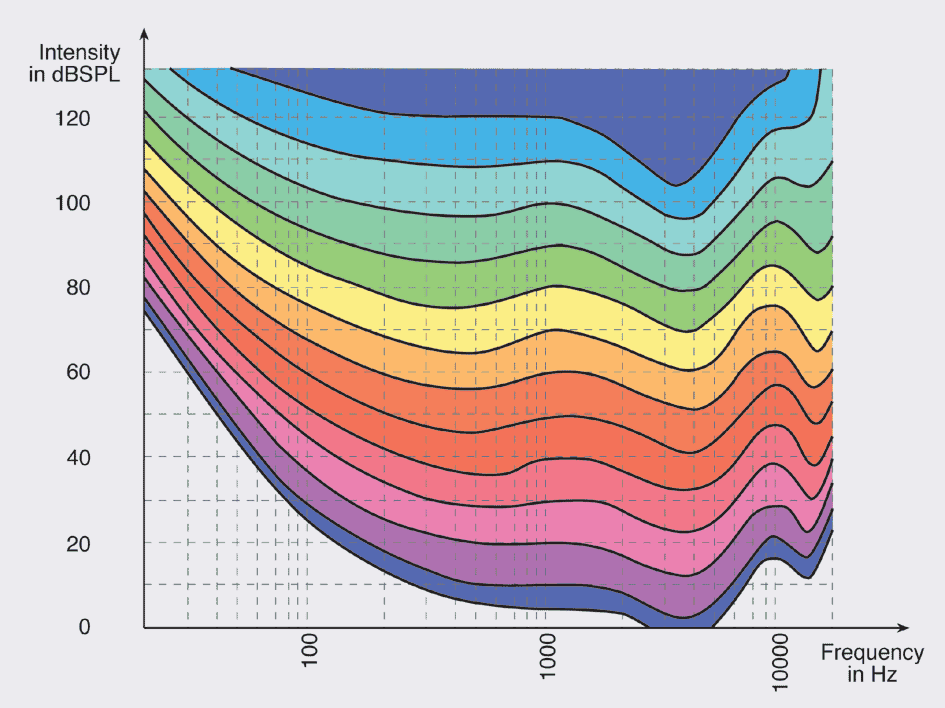
Additionally, human ears do not perceive all sound frequencies equally at lower volumes—a principle defined by the Fletcher-Munson equal-loudness contours. We naturally hear midrange frequencies (like human voices) better than sub-bass or ultra-high frequencies when playback is soft. Advanced loudness equalization algorithms gently adjust frequency response alongside volume, boosting bass and treble during quiet passages so that the track does not sound hollow.
Key Benefits of Enabling Loudness Equalization
Turning on volume evening features can dramatically improve daily computing and media consumption depending on your environment.
1. Comfortable Late-Night Media Watching
Modern movies and prestige TV shows are mixed for theaters with high-end multichannel audio setups. When downmixed to standard TV speakers or basic stereo headphones, the dialogue is often quiet while sound effects and musical scores are deafening. Loudness equalization fixes this mismatch, allowing you to watch movies late at night without disturbing family members or neighbors.
2. Competitive Gaming Advantages
In competitive shooters such as Counter-Strike 2, Valorant, and Call of Duty: Warzone, directional sound is critical. Subtle cues—like footsteps on gravel, a reload click around a corner, or an enemy dropping from a ledge—are quiet. Loudness equalization amplifies these quiet cues while keeping close-range gunfire and airstrikes from deafening you. Many competitive players enable it solely to track footsteps more reliably.

3. Eliminating Web and Streaming Inconsistencies
Web browsers often feed audio from dozens of disjointed sources: one YouTube video might be mixed very low, an advertisement might blare at full volume, and a podcast tab might sit somewhere in between. Loudness equalization acts as a safety net that stops jarring volume spikes when browsing multiple media platforms.
Potential Drawbacks: Why You Might Want to Turn It Off
While loudness equalization provides practical convenience, it modifies the original sound source. Audio purists and professional sound engineers often recommend disabling it for several reasons:
- Loss of Artistic Dynamics: Composers and sound designers intentionally use contrast. A sudden orchestral crescendo or an unexpected scare in a horror game is supposed to startle you. Compressing the dynamic range removes the emotional impact intended by the creator.
- Audio "Pumping" Artifacts: If a loud sound occurs repeatedly (such as sustained machine-gun fire or a heavy kick drum), the compressor repeatedly engages and disengages. This causes background noise and ambient audio to rapidly swell and dip, an unnatural effect known as pumping or breathing.
- Elevated Noise Floor: By amplifying quiet sounds, loudness equalization also boosts quiet background hiss, electrical hums, or low-quality microphone noise present in a recording.
- Distorted Spatial Awareness in Casual Games: While it helps pick up faint footsteps in competitive shooters, it can simultaneously degrade your ability to judge distance. Because a footstep 30 meters away is boosted to roughly the same volume as one 5 meters away, you might miscalculate how close an opponent actually is.
How to Enable or Disable Loudness Equalization in Windows
On Windows 10 and Windows 11, loudness equalization is built directly into the Windows audio architecture, though availability depends on whether your sound card driver (such as Realtek) supports Windows Audio Enhancements.
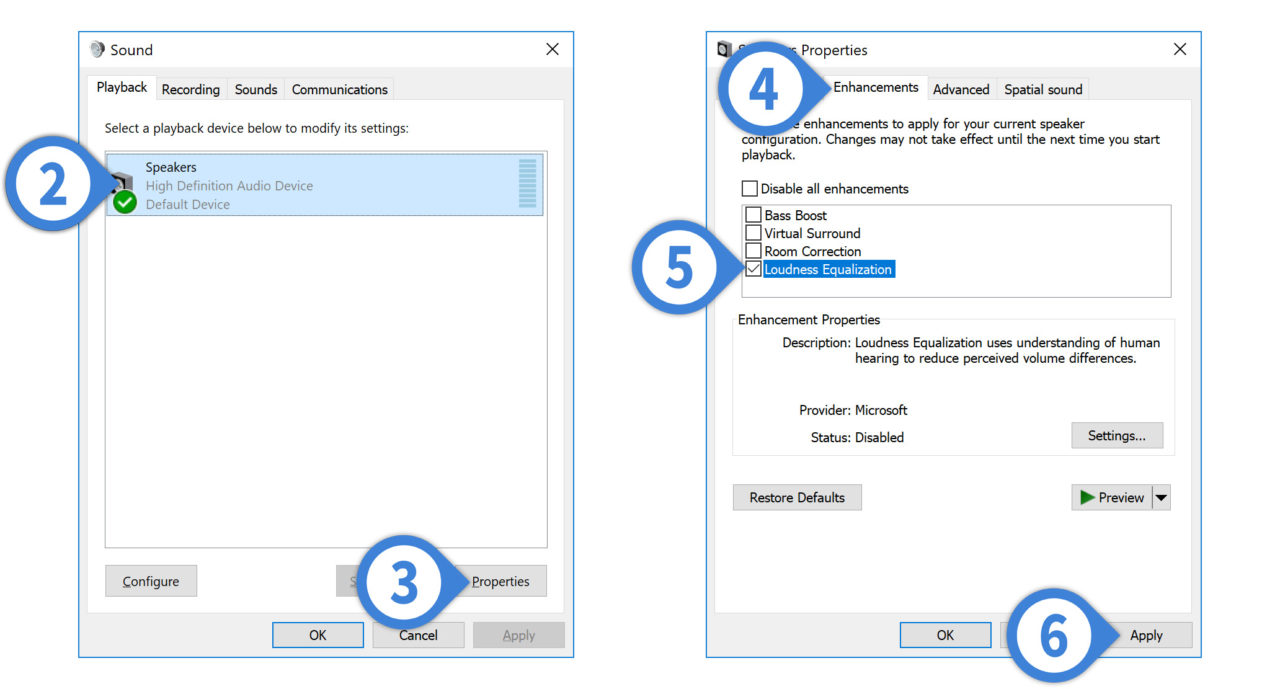
- Press Windows Key + R, type
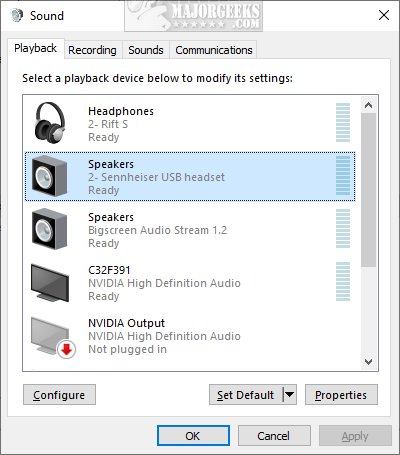
mmsys.cpl, and press Enter to open the classic Sound Control Panel. - Under the Playback tab, find your active playback device (such as Speakers or Headphones), right-click it, and select Properties.
- Navigate to the Enhancements tab. (If you do not see this tab, look for an Advanced or Spatial Sound tab, or check your dedicated sound card software like Realtek Audio Console).
- Scroll through the list and check or uncheck Loudness Equalization.
- With Loudness Equalization highlighted, click Settings at the bottom of the list. Here, you can adjust the release time slider: a shorter release reacts instantly to sudden sounds, while a longer release provides smoother transitions.
- Click Apply, then click OK to save your changes.
Loudness Equalization vs. Audio Normalization
It is common to confuse loudness equalization with audio normalization, but they operate differently:
| Feature | How It Works | Effect on Audio Dynamics |
|---|---|---|
| Loudness Equalization | Real-time dynamic processing (compression and limiting) applied constantly while sound plays. | Shrinks dynamic range; alters the relationship between loud and quiet sounds within a single track. |
| Peak/Loudness Normalization (e.g., Spotify, Apple Music) | Analyzes the entire track beforehand and applies a single, static gain adjustment to match a target LUFS (Loudness Units Full Scale). | Preserves dynamic range; the quiet and loud parts remain proportionally identical, but the overall song matches adjacent tracks. |
If you use streaming apps, features like "Normalize volume" in Spotify ensure one song does not blast your ears after a quiet track, without crushing the intra-track dynamics the way real-time loudness equalization does.
Should You Use It?
Deciding whether to leave loudness equalization on comes down to how and where you listen:
- Keep it ON if: You play competitive first-person shooters, watch movies with dialogue clarity issues on basic stereo speakers, or use open-back headphones in noisy rooms.
- Keep it OFF if: You listen to high-fidelity music, edit audio or video, watch films on a dedicated 5.1/7.1 surround sound system, or want an uncolored, authentic acoustic experience.
Because the toggle is completely reversible, test it across your favorite media. If dialogue becomes clearer and sudden loud effects stop causing fatigue, keep it enabled; if your music loses punch and sounds flat, toggle it off.