Why Is AT&T Internet Slow Today? How to Fix It
Few things are more frustrating than trying to work, stream, or game, only to realize your connection is crawling. If you are asking yourself why your AT&T internet is slow today, you are not alone. Sudden speed drops can happen for several reasons, ranging from widespread provider outages and neighborhood maintenance to simple hardware glitches inside your home.

Before you call customer support, there are several diagnostics and quick fixes you can perform to determine whether the issue is on your end or AT&T's network. This guide breaks down why your speeds might be dragging and how to get your connection back up to full speed.
Check for an AT&T Outage
Before troubleshooting your own equipment, rule out a regional network issue. When fiber or DSL lines are damaged, or when routine maintenance is underway in your area, your service will slow down or drop entirely.
- Use the Smart Home Manager App: Open the AT&T Smart Home Manager app on your smartphone using cellular data. It often displays a banner alert if there is a known outage in your zip code.
- Check Outage Trackers: Websites like Downdetector aggregate user reports in real-time, showing spikes in service complaints that indicate a wider outage.
- Look at Your Gateway Lights: Check the indicator lights on your AT&T gateway or modem. A flashing red light or an amber broadband light usually indicates a loss of connection to the outside network.
Quick Fixes for Slow AT&T Internet
If AT&T has not reported any outages in your area, the bottleneck is likely inside your home. Work through these troubleshooting steps to resolve the lag.
1. Restart Your Gateway (Power Cycle)
The oldest trick in the IT book is often the most effective. Over time, your AT&T gateway or router can accumulate cache errors or experience memory leaks that slow down traffic processing.
- Unplug the power cord from the back of your AT&T gateway.
- Wait at least 30 seconds to allow the internal capacitors to drain completely.
- Plug the power cord back in.
- Allow 5 to 10 minutes for the gateway to fully boot up, re-establish a connection, and synchronize with AT&T's servers.
2. Check Wi-Fi Signal Strength and Placement
If only one device is experiencing slow speeds while others work fine, the problem is likely your wireless connection, not the internet service itself.
- Move closer to the router: Thick walls, metal appliances, concrete, and mirrors can block or severely weaken Wi-Fi signals.
- Avoid interference: Keep your gateway away from baby monitors, microwaves, cordless phones, and Bluetooth devices that operate on similar frequencies.
- Switch frequency bands: If your gateway supports dual-band Wi-Fi, ensure your devices are connected to the 5 GHz band for faster speeds over shorter distances, rather than the crowded 2.4 GHz band.
3. Test Your Hardwired Speeds
Wi-Fi is susceptible to interference and congestion. To find out what your actual incoming internet speed is, bypass the airwaves entirely.
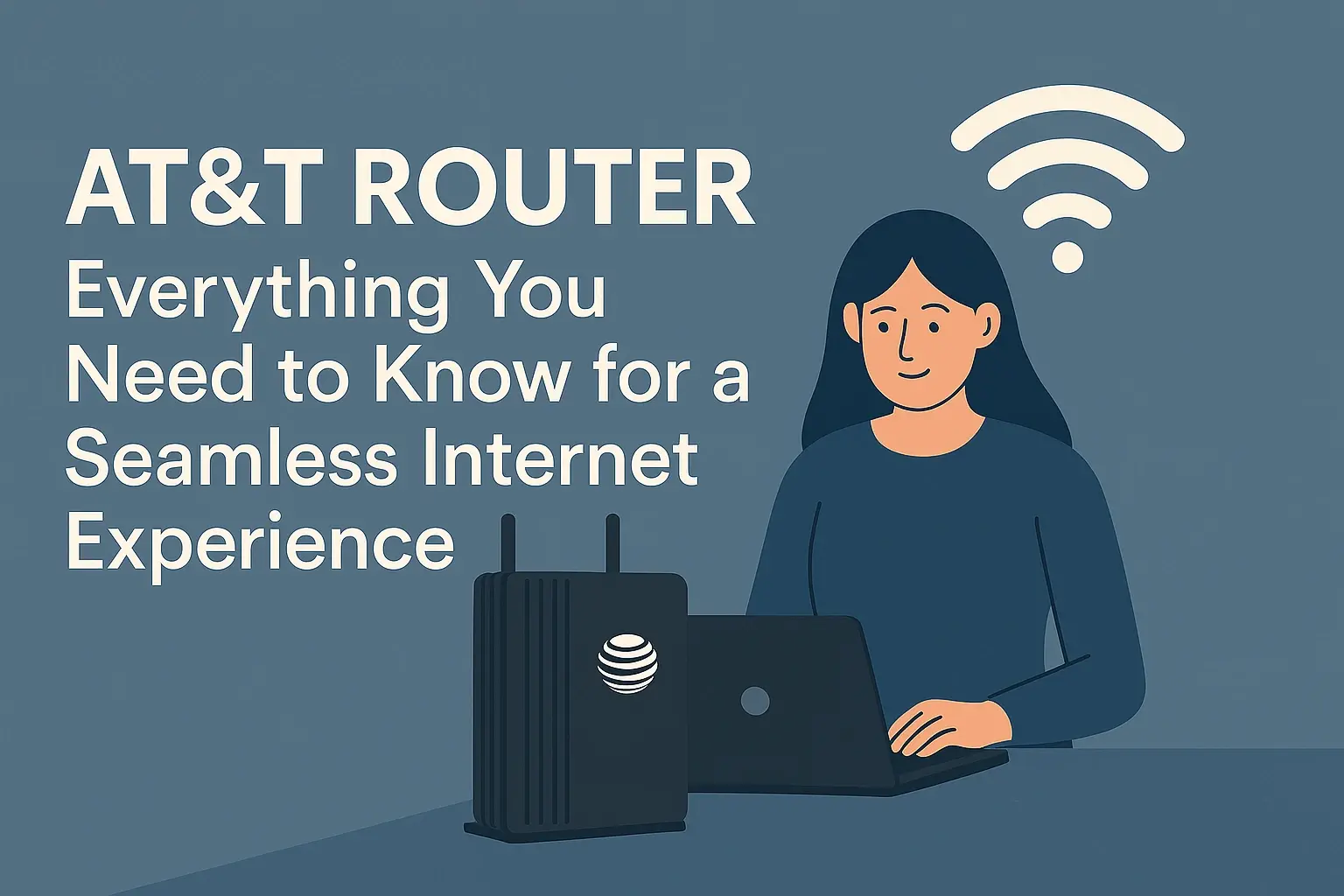
Connect a laptop or desktop directly to your AT&T gateway using an Ethernet cable. Run a reputable speed test (such as Ookla's Speedtest.net). If your wired speed matches the tier you pay for (e.g., 300 Mbps, 500 Mbps, or 1 Gig), your internet service is working fine, and the issue is strictly your home Wi-Fi network.
Advanced Causes of Speed Drops
If you have rebooted your equipment and tested your hardwired connection, but speeds remain sluggish, consider these less obvious culprits:
Network Congestion and Peak Hours
While AT&T Fiber offers dedicated bandwidth that rarely slows down during peak hours, older AT&T Internet (DSL or fixed wireless) networks share bandwidth among neighbors. If everyone in your apartment complex or neighborhood is streaming 4K video or downloading massive files between 7 PM and 11 PM, you may experience temporary congestion.
Background downloads, cloud backups (like iCloud, Google Drive, or OneDrive), and game updates can also quietly hog your bandwidth. Check your connected devices to ensure a console or PC isn't downloading a 50GB game update in the background.
Outdated Hardware
If you have been using the same AT&T gateway for many years, it may not be able to handle modern high-speed data demands or newer Wi-Fi standards (like Wi-Fi 6). Log into your Smart Home Manager app or contact AT&T support to see if your gateway is eligible for a free hardware upgrade.
When to Contact AT&T Support
If you have exhausted all troubleshooting steps—rebooted your gateway, verified no local outages exist, checked your Ethernet speeds, and cleared background downloads—it is time to contact AT&T customer service.
When you speak to a representative, let them know what steps you have already taken. They can run remote diagnostics on your line, check for micro-outages or signal degradation on the outside fiber/copper lines, and send a technician to your home if your physical hardware needs replacement.