Workforce.com.adp Alert! Are Your Wages Being Secretly Stolen?
When you open your digital pay stub or tax document and spot an unfamiliar line item, it is natural to feel a spike of anxiety. Recently, workers across various industries have flagged a curious notation: a Workforce.com.adp alert. This pairing of two giant workforce management and payroll platforms has left many employees wondering: Workforce.com.adp alert! Are your wages being secretly stolen?
While the phrase "wage theft" sounds alarming and intentionally malicious, the reality behind these automated platform integrations is often a mix of technical glitches, rounding errors, and misconfigured time rules. However, whether intentional or accidental, discrepancies between the hours you actually worked and the hours processed on your paycheck can result in lost income. Understanding how Workforce.com and ADP interact is the first step in ensuring every hour you worked is an hour you get paid for.
Understanding the Workforce.com and ADP Integration
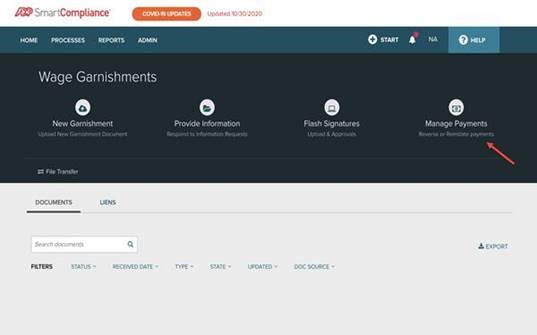
To understand why an alert might pop up regarding these systems, you first need to understand how they work together. Workforce.com is a popular employee scheduling and time-tracking software. Businesses use it to manage shift rosters, track breaks, and record punch-ins and punch-outs. ADP, on the other hand, is a massive payroll and human resources processing powerhouse.
Many companies use Workforce.com to track time and attendance, then export that data into ADP to generate paychecks. When this data transfer hits a snag, systems often flag the discrepancy. An integration alert usually means one of three things:
- A failure in the API connection between the two software platforms.
- A mismatch in employee identification numbers or pay rate data.
- Unresolved time-card edits made after the initial sync window closed.
While these alerts are often administrative warnings for managers, they can translate into delayed pay or miscalculated hours for the worker on the ground.
Common Causes of Payroll Discrepancies
Even without system integration alerts, payroll errors happen frequently. When time-tracking software interfaces with payroll software, several common failure points can lead to underpaid wages.
1. Automatic Break Deductions
Many scheduling platforms feature automatic break deductions. If your state or company policy mandates a 30-minute unpaid lunch, the software might automatically deduct those 30 minutes from your daily total. However, if you had to work through your lunch to cover a rush, and that override did not make it from Workforce.com into ADP, you just lost 30 minutes of pay.
2. Rounding Rules and Grace Periods
Labor laws permit employers to round employee time punches to the nearest quarter-hour, provided the rounding cuts both ways (sometimes favoring the employee, sometimes the employer). If your time-tracking app rounds your 8:02 AM punch-in down to 8:00 AM, that is legal. But if configuration errors consistently round down your start times while ignoring your late departures, your cumulative wages slowly dwindle over the pay period.

3. Overtime Miscalculations
Calculating overtime requires accurate tracking of total hours worked within a designated workweek. If a system sync error misses a shift or misattributes hours to a different pay period, your time-and-a-half premium pay might vanish. This is one of the most common ways workers lose money during system migrations or software updates.
Are Your Wages Being Secretly Stolen?
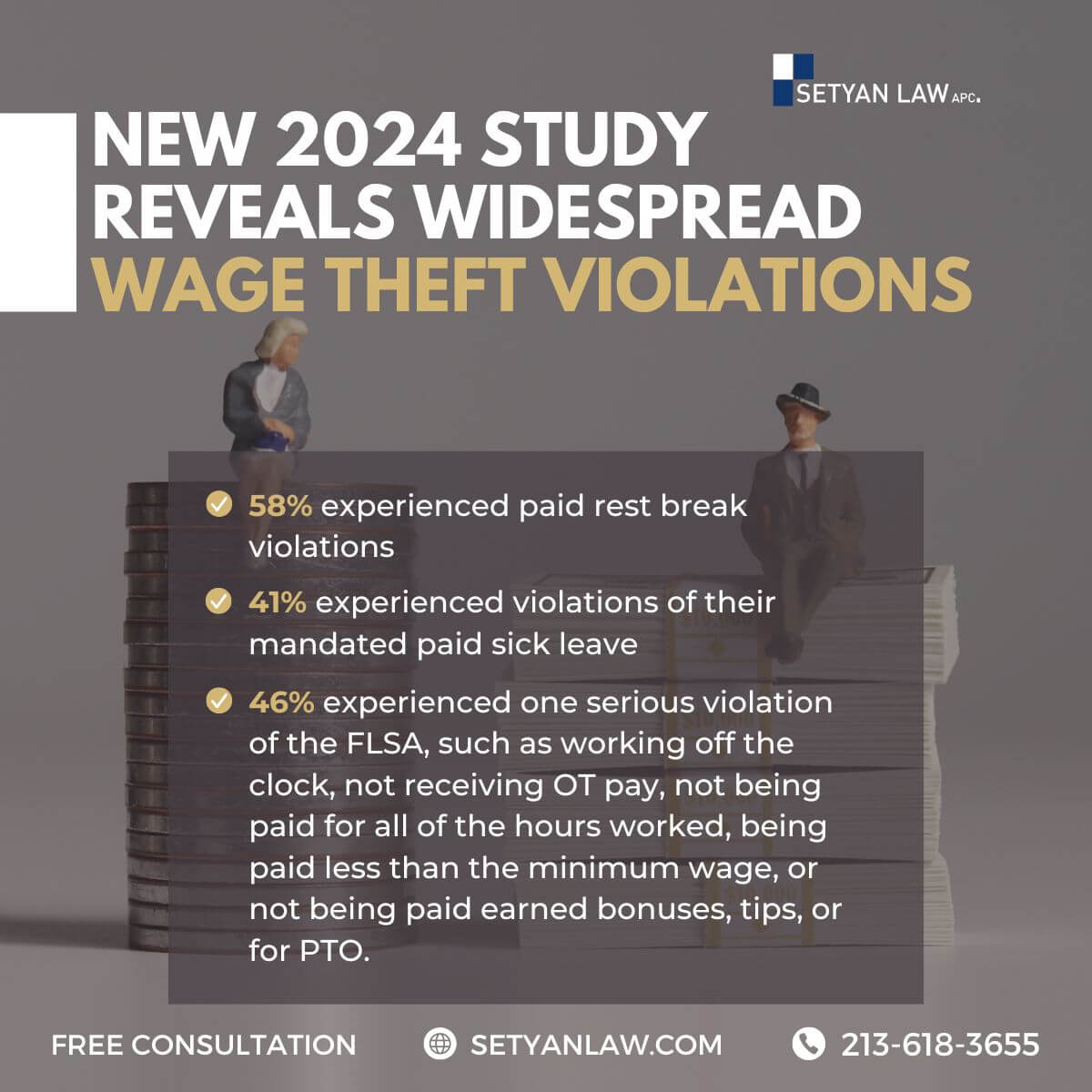
The short answer is: probably not through an intentional conspiracy, but potentially through systemic negligence. Legally, wage theft encompasses any employer practice that results in employees not receiving the full compensation they are legally owed. This includes off-the-clock work, unpaid overtime, and improper deductions.
When software integration issues cause underpayments, companies have a legal obligation to correct them. However, many employers rely heavily on automated systems, assuming that if the computer generated it, the pay must be accurate. If you do not audit your own pay stubs, these digital errors can go unnoticed indefinitely, effectively functioning as stolen wages.
How to Audit Your Pay and Protect Your Earnings
You do not need to be a certified public accountant to verify your earnings. Taking a proactive approach to your pay stubs can safeguard your hard-earned money.
- Keep your own records: Do not rely solely on the app. Take screenshots of your time-card totals at the end of every shift or workweek, especially if your company uses mobile punching.
- Compare time-cards to pay stubs: Cross-reference the total hours listed in your Workforce.com profile with the hours paid on your ADP stub. Every single hour should match.
- Scrutinize deductions: Look closely at taxes, benefits, and any miscellaneous deductions. Ensure uniform deductions match what you agreed to in your onboarding paperwork.
- Report discrepancies immediately: If you spot a mismatch, notify your manager or HR department in writing (via email or text). A paper trail is essential if you need to escalate the issue later.
What to Do If Your Employer Fails to Fix the Issue
If you bring a payroll error to management and they dismiss it as a "computer glitch" without taking steps to reimburse you, you have options. Legitimate businesses will quickly investigate and issue a retroactive adjustment check.
If your employer refuses to correct persistent underpayments:
- File a formal complaint with your state’s Department of Labor or Wage and Hour Division.
- Contact the federal Department of Labor (DOL) if you suspect widespread violations affecting multiple coworkers.
- Consult with an employment attorney, particularly if the unpaid wages involve significant overtime or minimum wage violations.
Ultimately, a Workforce.com.adp alert is simply a symptom of complex digital infrastructure meeting human labor. Stay vigilant, keep your own time logs, and never hesitate to demand every penny you have rightfully earned.